

iPhone Flashlight Not Working? How to Fix It Fast
November 16, 2026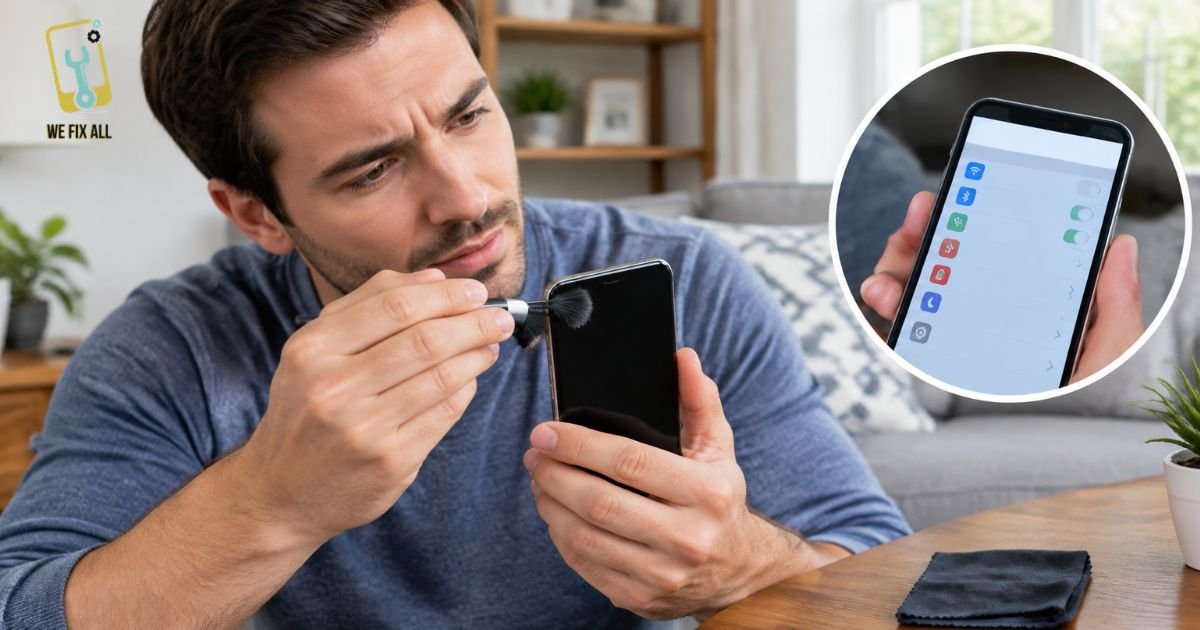
If your iPhone only works on a speakerphone, its earpiece speaker may be blocked, connected to the wrong audio output, or damaged. Check the call volume, remove your case, adjust Call Audio Routing, gently clean the speaker grille, restart your iPhone, and install available software updates. If the problem continues, professional hardware inspection may be required.
What Is the iPhone Earpiece Speaker?
The earpiece speaker, also called the ear speaker, receiver, or top speaker, is the small speaker located above your iPhone screen. It allows you to hear the other person during regular phone calls.
Your iPhone also has a separate speaker at the bottom. It handles music, videos, and speakerphone audio. Because these speakers work independently, one can stop working while the other continues functioning normally.
That’s why you might hear music perfectly but experience silence during regular calls.
Is It Really the Earpiece? A 5-Minute Test
Before attempting repairs, identify whether the earpiece is actually causing the problem.
We recommend a simple Top-Bottom-Buds Test.
Start a call with someone or dial your voicemail. Then perform these checks:
| Test | What to Do | What It Tells You |
| Top | Hold the iPhone to your ear | Silence suggests an earpiece issue |
| Bottom | Enable speakerphone | Clear sound indicates the bottom speaker works |
| Buds | Connect wired earbuds or AirPods | Clear sound suggests an earpiece or routing issue |
| Mic | Ask the other person if they can hear you | No sound indicates a possible microphone issue |
Now compare your results:
| What You Notice | Most Likely Cause |
| Silent at your ear but clear on speakerphone | Blocked or damaged earpiece |
| Silent on every audio output | Software or network issue |
| You hear the caller, but they cannot hear you | Microphone problem |
| Quiet or muffled sound | Dust or debris covering the grille |
| Crackling or static | Debris or hardware damage |
If regular calls are silent but music plays normally through the bottom speaker, the earpiece itself may be the problem.
9 Fixes for an iPhone Earpiece Speaker Not Working
Try these troubleshooting methods in order. Make a short test call after each step to check whether the issue is resolved.
1. Increase the Call Volume
During an active phone call, press the Volume Up button. Remember that call volume is separate from your iPhone’s ringtone volume.
A low call-volume setting can make a properly functioning earpiece seem broken.
2. Check Silent Mode and Focus Settings
Silent Mode and Focus settings rarely affect regular call audio, but checking them can help rule out basic configuration issues.
Make sure your iPhone is configured correctly and test another call.
3. Turn Off Bluetooth
Sometimes your iPhone automatically connects to a nearby Bluetooth headset, smartwatch, or vehicle.
Open Control Center, turn off Bluetooth, and make another call to see whether the earpiece starts working.
4. Set Call Audio Routing to Automatic
Incorrect audio routing can send call sound to another connected device.
Follow these steps:
- Open Settings.
- Select Accessibility.
- Tap Audio & Visual.
- Open Call Audio Routing.
- Select Automatic.
Make another call and check whether sound comes through the earpiece.
5. Remove Your Case and Screen Protector
A thick phone case or incorrectly positioned screen protector can cover the earpiece grille.
Remove both accessories temporarily and test the speaker again. If the sound returns, the accessory may have been blocking the audio opening.
6. Clean the Earpiece Grille Gently
Dust, lint, and everyday debris can collect inside the small speaker opening and reduce sound quality.
Use a clean, dry, soft-bristle brush with gentle strokes along the top speaker grille. A microfiber cloth can also help remove loose dust.
Avoid using liquids, sharp objects, or pins because they can damage the speaker mesh or push debris further inside.
7. Restart Your iPhone
Temporary software glitches can sometimes interfere with audio functions.
Restart your iPhone and make another test call. This simple step can resolve certain software-related problems.
8. Update iOS
An outdated operating system can sometimes cause unexpected performance issues.
To check for updates:
- Open Settings.
- Select General.
- Tap Software Update.
- Install an available update if one is offered.
After updating, test your earpiece again.
9. Reset All Settings
If the previous methods do not work, resetting your iPhone settings may help resolve configuration-related issues.
Go to Settings, General, Transfer or Reset iPhone, Reset, and select Reset All Settings.
This does not delete your photos or apps, but it resets settings such as saved Wi-Fi passwords and wallpaper preferences. Back up your important information before proceeding.
If the earpiece remains silent after all nine fixes, the problem may involve damaged hardware.
It Stopped Working After an iOS Update. What Should You Do?
Sometimes iPhone users notice earpiece problems immediately after installing an iOS update.
However, the update may not necessarily be responsible. It could simply be when an existing hardware issue became noticeable.
Try the following steps:
- Restart your iPhone.
- Check for another available iOS update.
- Reset All Settings if necessary.
- Repeat the Top-Bottom-Buds Test.
If the earpiece still does not work, professional inspection from WeFixAll can help identify whether the problem involves the speaker assembly or another internal component.
Did Water or a Drop Cause the Problem?
Think about whether the issue started after your iPhone experienced a fall, splash, or exposure to moisture.
- After a drop: A strong impact can loosen internal connections or damage the earpiece assembly. Software troubleshooting may not resolve physical damage.
- After water exposure: Moisture can affect the speaker and make audio sound muffled or completely silent. Turn off your iPhone, avoid charging it while wet, and allow it to dry naturally. Do not use direct heat.
If the problem continues, arrange a professional inspection. Water exposure can affect multiple internal components, even when the phone initially appears to work normally.
When Does Your iPhone Need Professional Earpiece Repair?
If your iPhone earpiece remains silent after basic troubleshooting, internal hardware damage may be responsible.
WeFixAll can help diagnose iPhone speaker problems and identify the appropriate repair solution.
A professional inspection can help determine whether the issue involves:
- A damaged earpiece speaker.
- Loose or damaged internal connections.
- Dust or debris trapped inside the speaker assembly.
- Liquid-related internal damage.
- Other hardware or audio-related faults.
Before arranging a repair, back up your important data and discuss the device’s condition with your technician.
How to Keep Making Calls Until the Problem Is Fixed
You do not have to stop making calls while waiting for your iPhone to be repaired.
Try these temporary alternatives:
- Use speakerphone: You can continue conversations, although people nearby may hear them.
- Use wireless or wired earbuds: These provide a more private calling experience.
- Use Messages or Email: For non-urgent communication, messaging can be a convenient alternative.
FaceTime audio may also be affected if the earpiece is the source of the problem.
Professional iPhone Earpiece Speaker Repair at WeFixAll
If your iPhone earpiece speaker is not working despite trying the troubleshooting methods above, WeFixAll can help identify the underlying issue.
Our repair team can inspect your device, diagnose speaker-related problems, and recommend a suitable repair solution based on its condition.
Whether your iPhone has muffled call audio, a completely silent earpiece, or speaker problems following accidental damage, getting the right diagnosis is important.
Avoid attempting complicated internal repairs without the proper tools and experience, as this may cause additional damage.
Conclusion
An iPhone earpiece speaker that isn’t working can result from dust buildup, software glitches, audio settings, or hardware damage. Try basic troubleshooting steps first, such as cleaning the earpiece gently and restarting your device. If the problem continues, professional diagnosis and repair from WeFixAll can help restore clear call audio and get your iPhone working properly again.
FAQs
Why Can I Only Hear Calls on a Speakerphone?
The speakerphone uses the bottom speaker, while regular calls use the top earpiece. If the speakerphone works but regular calls remain silent, the earpiece may be blocked, misrouted, or damaged.
How Do I Clean My iPhone Earpiece Speaker?
Turn off your iPhone and gently brush the top speaker grille using a clean, dry, soft-bristle brush. Avoid liquids, pins, and sharp tools that could damage the speaker mesh.
Will an iOS Update Fix a Silent Earpiece?
Sometimes. If the issue is caused by a software glitch, updating iOS or restarting your iPhone may help. Persistent problems may indicate hardware damage.
When Should I Get My iPhone Earpiece Repaired?
If you cannot hear callers after checking the volume, Bluetooth, audio routing, and speaker grille, professional inspection is recommended. WeFixAll can help diagnose the problem.
Can Water Damage Stop an iPhone Earpiece From Working?
Yes. Moisture can affect the earpiece speaker and cause muffled or completely silent audio. Turn off the device and arrange an inspection if the problem continues.
How Do I Know If It’s the Microphone Instead?
Ask the person you are calling whether they can hear you. If you can hear them but they cannot hear you, the microphone may be responsible. If they hear you clearly but you cannot hear them, the earpiece may be faulty.
