

iPhone Wireless Charging Not Working? 10 Fixes That Work
November 18, 2026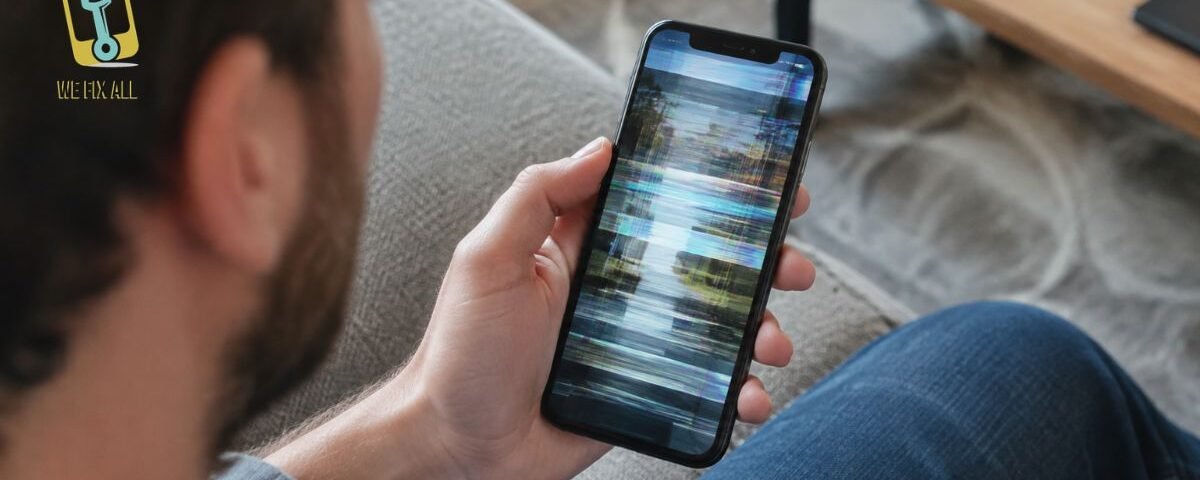
Most iPhone screen flickering problems are caused by software glitches, brightness settings, or display-related hardware issues. Start by force restarting your iPhone, disabling Auto-Brightness and True Tone, and updating iOS. If the flickering continues after troubleshooting, your display or its internal connection may need professional inspection.
Why Is My iPhone Screen Flickering?
iPhone screen flickering refers to unwanted changes in brightness, colour, or displayed images. It may appear as flashing white or black screens, pulsing brightness, coloured lines, or a display that suddenly shakes.
The causes generally fall into two categories.
Software and Settings Causes
- Temporary system glitches: Minor software errors can cause unexpected display behaviour.
- Auto-Brightness issues: Automatic brightness adjustments may create noticeable changes in screen brightness.
- App-related problems: An outdated or malfunctioning app may cause flickering when you open it.
- iOS bugs: Software problems following an update can sometimes affect display performance.
Hardware Causes
- Damaged display panel: Drops, impacts, or excessive pressure can damage internal screen components.
- Loose display connection: A damaged or disconnected display cable may interrupt normal screen operation.
- Faulty replacement screen: An incompatible or defective replacement display can cause brightness issues and flickering.
- Internal component damage: Problems with display-related circuitry may also affect screen performance.
Identifying the cause is important because software troubleshooting will not resolve physical display damage.
Is It Normal OLED Dimming or a Real Screen Problem?
Many newer iPhone models use OLED displays. These screens control brightness by adjusting individual pixels. Some OLED displays use a technique called Pulse Width Modulation (PWM), which rapidly switches pixels on and off.
Some users notice this behaviour as a slight shimmer when the brightness is very low.
Here’s how to identify the difference:
- Possibly normal: A faint shimmer appears only at very low brightness and disappears when you increase brightness.
- Possible screen fault: The display flashes visibly, shows coloured lines, turns black unexpectedly, or flickers at normal brightness.
If the screen continues flickering at different brightness levels, it is worth investigating further.
The 60-Second Test: Is It a Software or Hardware Problem?
Before trying different solutions, perform these quick checks. They can help you understand whether the problem is related to software or the physical display.
| Check | What It Tells You |
| Does flickering happen in one app? | The app may be causing the problem. |
| Did it start after a drop or water exposure? | Hardware damage may be responsible. |
| Does a screenshot show the flickering? | It can help identify a software-related issue. |
| Does flickering happen only in cold weather? | Temperature may be affecting display behaviour. |
| Does a force restart solve the issue? | A temporary software glitch may be responsible. |
Try the Screenshot Test
Take a screenshot while your iPhone screen is flickering. Open the screenshot in Photos and check whether the problem appears in the saved image.
- If the screenshot looks normal but the physical display continues flickering, the display hardware may be responsible.
- If the flickering or visual distortion appears in the screenshot, a software or graphics-related problem may be involved.
This test is not a definitive diagnosis, but it can help narrow down the possible cause.
How Do You Fix a Flickering iPhone Screen?
Try these nine solutions in order. Stop when your screen returns to normal.
Fix 1: Force Restart Your iPhone
A force restart can clear temporary software glitches without deleting your personal information.
For an iPhone 8 or later:
- Press and quickly release the Volume Up button.
- Press and quickly release the Volume Down button.
- Press and hold the Side button.
- Release it when the Apple logo appears.
Older iPhone models use different button combinations.
After restarting, check whether the screen flickering has stopped.
Fix 2: Turn Off Auto-Brightness
Auto-Brightness automatically adjusts your screen according to surrounding light conditions. Sometimes these adjustments can make brightness appear unstable.
Follow these steps:
- Open Settings.
- Select Accessibility.
- Tap Display & Text Size.
- Scroll down to Auto-Brightness.
- Turn the feature off.
- Adjust brightness manually and observe the display.
If the flickering disappears, automatic brightness adjustments may have contributed to the problem.
Fix 3: Turn Off True Tone
True Tone automatically adjusts your display’s colour temperature according to the surrounding lighting.
If the screen appears to change colours or brightness unexpectedly, disabling this feature can help identify whether it is contributing to the issue.
- Open Settings.
- Select Display & Brightness.
- Find True Tone.
- Turn it off.
- Check whether the display becomes stable.
If there is no improvement, you can enable True Tone again.
Fix 4: Check for Problematic Apps
If your iPhone screen flickers only when using a particular application, the problem may be related to that app.
Try the following:
- Open the App Store.
- Check whether an update is available.
- Install the latest version.
- Restart your iPhone.
- If the problem continues, delete and reinstall the application.
If flickering happens in only one app after reinstalling it, contact the app developer.
You can also try enabling Reduce Transparency:
- Open Settings.
- Select Accessibility.
- Tap Display & Text Size.
- Enable Reduce Transparency.
This reduces certain visual effects and may help with display-related software issues.
Fix 5: Update iOS
Outdated software can sometimes contain bugs that affect display performance.
Updating iOS may resolve problems caused by software errors.
Follow these steps:
- Open Settings.
- Tap General.
- Select Software Update.
- Check for available updates.
- Download and install the update if one is available.
Keep your iPhone connected to Wi-Fi and ensure it has sufficient battery power.
If flickering started immediately after a software update, check for a subsequent update that may address the issue.
Fix 6: Reset All Settings
Incorrect settings or software configuration problems can sometimes affect your iPhone display.
Resetting all settings restores default system settings without deleting your photos, apps, or messages.
Here’s how:
- Open Settings.
- Tap General.
- Select Transfer or Reset iPhone.
- Tap Reset.
- Choose Reset All Settings.
- Enter your passcode and confirm.
Remember that saved Wi-Fi passwords and customised settings will also be reset.
Check your screen again after the process is complete.
Fix 7: Back Up and Restore Your iPhone
If the previous solutions haven’t worked, restoring your iPhone may help resolve deeper software problems.
However, this process can erase your device, so create a backup before proceeding.
Follow these steps:
- Back up your iPhone using iCloud or a computer.
- Connect your iPhone to a Mac or PC.
- Put your device into Recovery Mode.
- Select Restore when the available options appear.
- Allow the software installation to finish.
- Set up your iPhone as a new device temporarily.
- Check whether the flickering continues.
If the display still flickers after a clean installation, the problem may be related to hardware rather than software.
Fix 8: Get a Professional Diagnosis
If your iPhone screen continues flickering after trying the troubleshooting steps, it may be time to have the device inspected by a technician.
A professional inspection can help identify problems such as:
- Damaged OLED or LCD display panels.
- Loose or damaged display connectors.
- Internal screen connection problems.
- Display-related circuit damage.
- Defective replacement screens.
At WeFixAll, technicians can inspect your iPhone and help identify the reason behind its display problems.
Avoid repeatedly resetting your device when the symptoms suggest physical damage. A proper inspection can help determine the next repair step.
Fix 9: Repair or Replace the Display
If the screenshot test suggests a hardware problem or the flickering continues after software troubleshooting, the display may require repair or replacement.
Common signs of display damage include:
- Persistent green, pink, or white lines.
- Random blackouts or flashing.
- Flickering after accidental drops.
- Unresponsive areas of the touchscreen.
- Brightness changes that continue after restarting.
- Visible display damage or cracks.
WeFixAll provides iPhone screen repair services to help resolve display-related problems. A technician can inspect the screen and determine whether the display, connector, or another internal component needs attention.
iPhone Screen Flickering by Symptom
Different flickering patterns can indicate different underlying problems. The following table explains common symptoms and what you should try first.
| What You See | Possible Cause | What to Try |
| Flashing white or black screen after an update | Software glitch | Force restart and update iOS |
| Flickering in one app only | App-related problem | Update or reinstall the app |
| Slight shimmer at low brightness | OLED dimming | Increase brightness slightly |
| Green, pink, or vertical lines | Display or cable damage | Get the screen inspected |
| Screenshot looks normal but display flickers | Possible hardware fault | Arrange a professional diagnosis |
| Flickering outdoors in winter | Temperature-related behaviour | Allow the phone to warm naturally |
Green screen flickering and coloured lines should not be ignored, especially when they appear after accidental damage.
If the problem continues, back up your important information and arrange a professional inspection.
Does Canadian Winter Make iPhone Screen Flickering Worse?
Cold Canadian weather can affect how your iPhone performs. Extremely low temperatures may temporarily affect battery performance and touchscreen responsiveness.
iPhones are designed to operate within an ambient temperature range of approximately 0°C to 35°C. Using your device outside this range may cause unexpected behaviour.
Although cold weather is not an established direct cause of screen flickering, temperature changes may contribute to temporary display or performance issues.
What Should You Do?
- Keep your iPhone warm: Store it in an inside pocket rather than an exposed outer pocket.
- Allow it to return to room temperature: If the display behaves unusually after being outdoors, let the device warm naturally.
- Avoid charging immediately when extremely cold: Allow the device to return to a normal temperature.
- Check the display indoors: If flickering continues at room temperature, investigate other possible causes.
If the display continues flickering after your iPhone has warmed up, the issue may require further troubleshooting or hardware inspection.
When It’s Hardware: Getting Your iPhone Screen Repaired
Sometimes iPhone screen flickering cannot be resolved through software troubleshooting. Physical damage, faulty display components, or internal connection problems may require professional attention.
Before arranging a repair, consider these important points:
Identify the Actual Problem
A flickering display does not always mean the entire screen needs replacement. The problem could involve a connector, display component, or internal circuitry.
A proper inspection helps identify the affected component.
Choose the Right Repair Service
Look for technicians experienced in iPhone screen and hardware repairs. Proper inspection and suitable replacement components are important for reliable results.
Check the Screen After Repair
After a repair, check the following:
- Screen brightness and colour consistency.
- Touchscreen responsiveness.
- Display stability.
- Front camera and sensor functionality.
- Normal operation of the device.
If flickering appears after a previous screen replacement, have the display and its connections inspected again.
How WeFixAll Can Help
If your iPhone screen keeps flickering despite trying the recommended fixes, WeFixAll can help you identify the underlying problem.
Our iPhone repair services focus on diagnosing and resolving common screen and hardware issues. Whether the problem involves display damage or another internal component, getting the correct diagnosis is an important first step.
Conclusion
Start simple. Force restart, switch off Auto-Brightness and True Tone, update iOS, and reset settings, in that order. Test before you spend. The screenshot test tells you whether it’s software or the display. Know when to stop. If flicker survives a clean restore, or began after a drop, back up your iPhone and book a diagnosis, then compare Apple’s quote with an independent shop’s written one
FAQs
Is iPhone Screen Flickering a Software or Hardware Problem?
It can be either. Software glitches, incorrect display settings, damaged screens, and loose internal connections can all cause flickering. If basic troubleshooting doesn’t work, professional inspection may be necessary.
Will a Factory Reset Fix iPhone Screen Flickering?
Sometimes. A factory reset may resolve problems caused by corrupted software or incorrect settings. However, it cannot repair physical screen damage. Always back up your data before restoring your iPhone.
Why Does My iPhone Flicker at Low Brightness?
Some OLED displays use Pulse Width Modulation (PWM) to control brightness. This can create a subtle shimmer that some users notice at lower brightness levels. If you experience obvious flashing or coloured lines, the display may have another problem.
Can a Flickering iPhone Screen Fix Itself?
It may stop if the cause is a temporary software glitch. However, flickering caused by physical damage or faulty internal components is unlikely to resolve itself. Monitor the problem and arrange an inspection if it continues.
How Do I Know If My iPhone Screen Needs Replacement?
Persistent flickering, coloured lines, black spots, touch problems, and display blackouts may indicate screen damage. A technician should inspect the device to determine whether the display needs replacement or another component is responsible.
Does Screen Flickering Mean My iPhone Is Damaged?
Not necessarily. Software bugs and display settings can also cause flickering. However, if the problem starts after a drop, pressure, or water exposure, hardware damage becomes more likely.
Can I Use My iPhone If the Screen Keeps Flickering?
You may still be able to use it, but persistent flickering can make the device difficult to operate. Back up your important data and avoid delaying an inspection if the display shows signs of damage.
