

iPhone Storage Full Smart Ways to Free Up Space Fast
December 12, 2025
Local iPhone Repair Canada Same-Day Service You Can Rely On
December 15, 2025Check If Your iPhone Is Genuine Tips Every Buyer Should Know
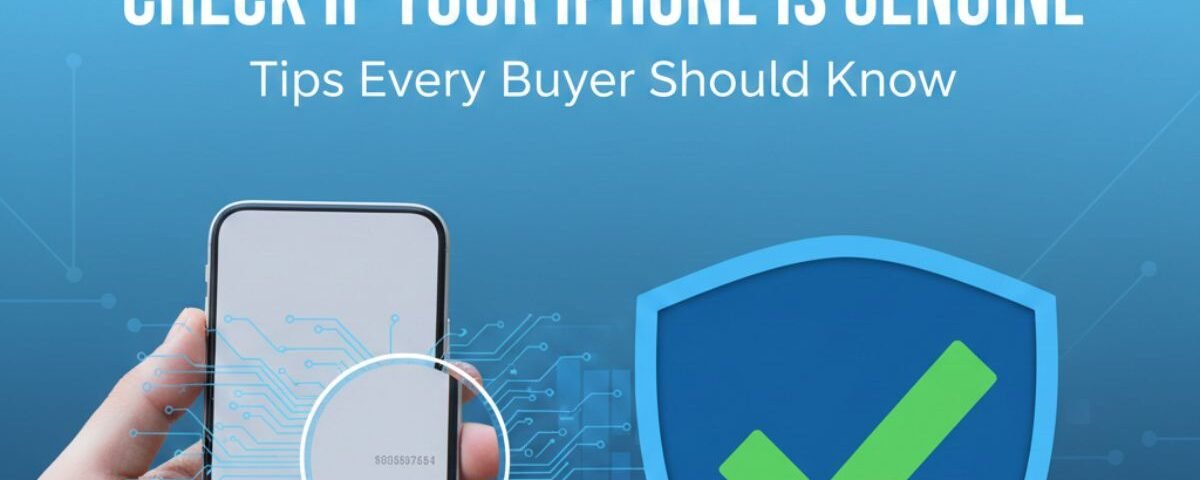
Buying a new or used iPhone can be exciting, but it also comes with risks. Not all phones on the market are genuine, and counterfeit devices are becoming harder to spot. A fake iPhone can cause poor performance, security risks, and loss of money. That’s why knowing how to check if your iPhone is genuine is essential for every buyer. From verifying the Serial Number and IMEI to inspecting the physical device and accessories, small details can reveal big truths. This guide will help you identify a real iPhone, avoid scams, and ensure that your device works smoothly. Whether you’re buying online or in-person, these tips will keep you safe. Follow these steps to make sure your investment in a genuine iPhone is worthwhile. By the end, you’ll feel confident and informed before making your purchase.
The Importance of Authenticity: Why It Matters for iPhone Owners
You might think, “If it looks like an iPhone and works like one, does it really matter?”
The answer is simple: yes, it matters a lot.
Owning a genuine iPhone is not just about the Apple logo. It’s about safety, privacy, and performance. Fake iPhones often use low-quality batteries that can overheat. Some run unsafe software that can steal personal data.
You also miss out on Apple warranty, software updates, and Genius Bar support. Most fake phones slow down or stop working within months.
That’s not the experience you paid for — so let’s make sure you avoid it.
Identifying a Genuine iPhone
What Makes an iPhone Genuine?
A real Apple iPhone feels solid and premium. Apple focuses on detail. Buttons click firmly. The frame fits perfectly. There are no loose parts.
The software is smooth and fast. Apps open without lag. The screen looks sharp and vibrant. This smooth experience is a strong sign of a genuine iPhone.
If the phone feels cheap, slow, or poorly built, be cautious.
How to Locate and Verify Your iPhone’s Serial Number and IMEI
Every iPhone has a unique identity. These are the Serial Number and IMEI.
Follow these steps:
- Unlock your iPhone
- Open Settings
- Tap General
- Tap About
You will see the Serial Number and IMEI listed clearly.
You should also:
- Check the SIM tray (numbers are engraved on many models)
- Check the original box (numbers printed on the back)
Detecting Counterfeit iPhones
Signs of a Fake iPhone
Fake phones often look convincing at first glance. But close inspection reveals problems.
Watch out for these signs:
- Screen quality: Real iPhones are deep black when off. Fake screens look grey.
- Buttons: Loose or shaky buttons are a warning sign.
- Charging port: Real iPhones use Lightning or USB-C. A micro-USB port means fake.
- Memory card slot: iPhones never support SD cards. If you see one, it’s fake.
Always do a full iPhone build quality check. A genuine iPhone feels heavy and solid, not hollow or plastic-like.
How to Spot Fake Packaging and Accessories
Apple packaging is strong and premium. The box should feel firm and well-built. Text should be sharp, clean, and free of spelling mistakes.
Check the accessories:
- The charging cable should say “Designed by Apple in California”
- It should also include assembly details and a serial number
Fake accessories feel light and cheap. Poor plastic quality is a clear sign.
Remember, scammers may use good boxes with fake phones, so always do a full iPhone packaging inspection.
Advanced Verification Methods
Using Apple’s Check Coverage Tool
This is your secret weapon. Apple provides a free website to help you check whether an iPhone is genuine quickly.
Step-by-step process:
- Go to a computer or another phone.
- Search for “Apple Check Coverage.”
- Enter the Serial Number from your Settings.
- Enter the security code on the screen.
If the iPhone is real, the website will show the exact model and warranty status (Active or Expired).
If you see an error like “Serial number not valid,” the phone is likely a fake iPhone. This is the most reliable Apple method for iPhone verification.
Testing Software and Features
Fake iPhones sometimes run cheap Android software disguised as iOS.
Check the following:
- Siri: Press and hold the power button (or home button). If Siri doesn’t respond or a generic assistant appears, it’s a fake iPhone.
- App Store: Tap the App Store icon. If it opens Google Play instead, it’s not a genuine iPhone.
- Operating System: Go to Settings > General > Software Update. A real iPhone connects to Apple servers. A fake one may spin endlessly or show an error.
Testing Siri and the software version can save you from costly mistakes.
Regional Considerations for Canadian Buyers
iPhone Compatibility with Canadian Carriers
Canadian networks include Rogers, Bell, Telus, and Freedom Mobile. Check the Model Number in Settings > General > About (starts with ‘A’, e.g., A2848).
- Ensures support for LTE and 5G bands in Canada.
- Some international models may have restrictions (e.g., fixed camera shutter sound, missing FaceTime Audio).
- Confirm country of origin to avoid connectivity issues during trips in Canada.
Understanding Canadian Warranty Policies
- Apple warranties are mostly international, but grey-market phones may not be serviced in Canada.
- Always check warranty status on the Apple Check Coverage website.
- Ask the seller about warranty coverage in Canada before paying.
Beyond the Basics: Additional Tips
How to Verify Refurbished iPhones
- Genuine Apple refurbished iPhones new batteries and outer shells.
- Third-party sellers may just wipe the phone and claim it’s refurbished.
- If a seller claims “Brand New” but the code starts with F, it’s misleading.
Avoiding Scams During Festive Sales
- Be cautious around Black Friday, Boxing Day, and holidays.
- Watch out for suspicious offers on Kijiji, Facebook Marketplace, or Craigslist.
- If an iPhone 15 Pro Max is $400 instead of $1500, it’s likely a fake iPhone scam.
Safety tips:
- Meet in public, preferably a police “safe exchange zone.”
- Never pay before testing the iPhone.
- Open the box and power on the phone before paying.
What to Do If You’ve Been Scammed
Steps to Take if You Own a Counterfeit iPhone:
- Contact the seller (eBay, Amazon, etc.) and open a dispute.
- Report the seller to local authorities and the marketplace.
- Contact your bank for a chargeback if paid by credit card.
- Never resell a fake iPhone — it’s illegal.
How to Protect Yourself in the Future:
- Buy directly from Apple or authorized retailers (Best Buy, Staples, Bell, Rogers).
- If buying used, bring a portable charger, a friend, and always verify the Serial Number.
Conclusion .
Ensuring your iPhone is genuine protects your money, data, and peace of mind. By checking the Serial Number, IMEI, physical quality, and software, you can easily spot a counterfeit. Always inspect the box and accessories, and use official Apple tools when possible. Meeting sellers safely and asking the right questions adds another layer of security. Following these tips will help you buy with confidence and enjoy the premium iPhone experience. Remember, it’s better to double-check than to regret later.
FAQs
You can locate your Serial Number and IMEI in Settings > General > About. These numbers are also often printed on the SIM tray or the original box. They act like a fingerprint for your device and are essential for verifying authenticity. Matching the numbers across the device, box, and SIM tray ensures the iPhone is genuine. You can also use Apple’s official website to check the coverage and warranty using these numbers.
Fake iPhones often show subtle flaws. Look for loose buttons, poor-quality screens, or unusual charging ports. The device might run slow, the camera may be blurry, or apps may malfunction. iPhones never have memory card slots, so that’s a red flag. Using these visual and functional checks alongside software verification helps you identify counterfeit devices reliably.
- Yes, Apple’s Check Coverage Tool is one of the most reliable methods. Enter the Serial Number on Apple’s official website. If the phone is genuine, the site shows the model and warranty status. If you get an error like “serial number not valid,” the device is likely fake. This tool is especially useful when buying used iPhones from online marketplaces.
Refurbished iPhones sold by Apple are genuine and include new batteries and outer shells. You can check the Model Number: M = new, F = Apple refurbished, N = replacement, P = personalized. Third-party refurbished phones may not be authentic. Knowing these codes ensures you can differentiate between a true Apple refurbished iPhone and a low-quality imitation.
Always meet sellers in public places or “safe exchange zones.” Never pay before testing the phone. Open the box and power on the iPhone, checking IMEI, Serial Number, software, and accessories. Be wary of deals that seem too good to be true. These precautions help you avoid counterfeit iPhones and ensure a secure and safe purchase.
