

Water Damage First Aid for Your Devices: Do This Before You Do Anything Else 2026
July 7, 2026
Best Phone & Laptop Battery Replacement Cost Guide (2026): Prices, Repair Options & Expert Tips
July 9, 2026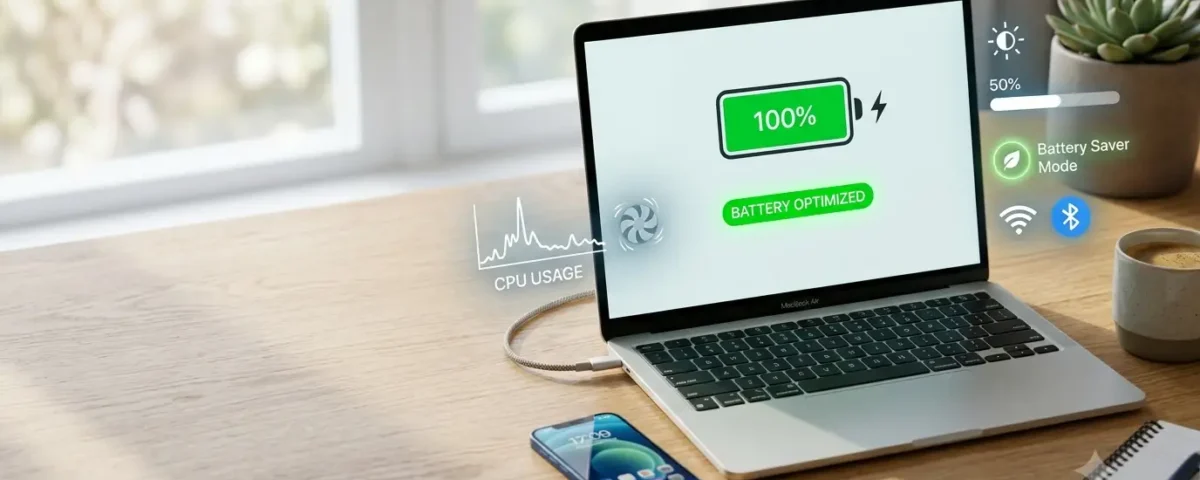
Whether you’re working from home, attending online classes, or traveling, a long-lasting laptop battery makes life much easier. Few things are more frustrating than seeing your battery drop to a critical level when you need your laptop the most.
The good news is that you don’t need to buy a new battery immediately. A few simple changes to how you use and charge your laptop can significantly improve battery performance and even extend its overall lifespan.
If you’re wondering how to extend your laptop battery life, the good news is that a few simple habits can make a noticeable difference.
If you’ve been wondering how to extend your laptop battery life, this complete guide covers practical tips, common mistakes to avoid, and expert recommendations that work for Windows laptops, MacBooks, and most other portable computers.
Quick Answer
The easiest way to extend your laptop battery life is to lower your screen brightness, enable battery saver mode, close unnecessary applications, keep your laptop cool, avoid letting the battery regularly reach 0%, and maintain a charge between 20% and 80% whenever possible. These habits reduce battery wear and help your laptop last longer on every charge.
What Is Laptop Battery Life?
Laptop battery life is the amount of time your laptop can operate on a single charge before it needs to be plugged in again.
Most modern laptops use lithium-ion or lithium-polymer batteries. These batteries are lightweight, rechargeable, and designed to last several years. However, every battery gradually loses capacity after repeated charging cycles.
Battery life depends on several factors, including:
- Screen brightness
- Running applications
- Processor usage
- Wireless connections
- Battery age
- Charging habits
- Environmental temperature
- How to Extend Your Laptop Battery Life
Taking good care of your battery helps maintain both its daily runtime and long-term health.
Knowing how to extend your laptop battery life can help you save money, improve productivity, and keep your laptop performing better for years.
Why Laptop Batteries Lose Capacity
Best Settings to Help You Extend Your Laptop Battery Life
Every rechargeable battery has a limited lifespan. Most laptop batteries are designed to last between 300 and 1,000 charge cycles before noticeable capacity loss occurs.
Some of the most common causes of battery wear include:
- Constant exposure to high temperatures
- Keeping the battery fully charged at 100% for extended periods
- Frequently draining the battery completely
- Running demanding software continuously
- Poor ventilation
- Aging battery cells
Fortunately, many of these issues are preventable with good battery care.
15 Proven Ways to Extend Your Laptop Battery Life
1. Lower Your Screen Brightness
Your laptop display is one of the biggest power consumers.
Reducing brightness by even 20% can noticeably improve battery life without making the screen difficult to read.
Use automatic brightness if your laptop supports it.
Also read : Phone Charging Issues
2. Turn On Battery Saver Mode
Windows and macOS both include built-in battery-saving features.
Battery Saver automatically:
- Reduces background activity
- Limits unnecessary notifications
- Optimizes processor performance
- Reduces visual effects
Enable this feature whenever you’re away from a power outlet.
3. Close Programs You Aren’t Using
Every open application consumes processing power and memory.
Close unnecessary:
- Browser tabs
- Video editing software
- Games
- Music streaming apps
- Cloud syncing programs
Your battery will thank you.
Also read : Phone Charging Issues
4. Disconnect Unused USB Devices
External hard drives, webcams, keyboards, and USB-powered accessories all draw power from your laptop.
Disconnect them whenever they aren’t needed. How to Extend Your Laptop Battery Life
5. Disable Bluetooth and Wi-Fi
If you’re working offline, disable wireless features.
Bluetooth and Wi-Fi constantly search for nearby devices and networks, using battery power even when idle.
6. Use Power-Efficient Settings
Most laptops provide several power plans.
Choose:
- Power Saver
- Balanced
- Battery Saver
- How to Extend Your Laptop Battery Life
Avoid High Performance mode unless absolutely necessary.
7. Keep Your Laptop Cool
Heat is one of the biggest enemies of lithium-ion batteries.
Avoid placing your laptop on:
- Blankets
- Beds
- Sofas
- Pillows
- How to Extend Your Laptop Battery Life
Instead, use a desk or laptop stand to improve airflow.
8. Update Windows or macOS
Operating system updates often improve battery optimization.
Manufacturers continuously release updates that reduce unnecessary background processes and improve energy efficiency.
Always install important updates.
9. Manage Startup Programs
Many applications launch automatically when your laptop starts.
Too many startup programs increase CPU usage immediately after boot.
Disable software you rarely use.
10. Reduce Keyboard Backlighting
Backlit keyboards look great, but they also consume power.
Reduce brightness or turn off keyboard lighting when working in well-lit environments.
11. Avoid Fully Draining the Battery
Contrary to popular belief, modern lithium-ion batteries perform best when kept between 20% and 80%.
Repeatedly draining the battery to 0% can reduce its lifespan over time.
12. Don’t Leave Your Laptop Plugged In All the Time
Modern laptops prevent overcharging, but constantly maintaining a full 100% charge can increase battery wear.
If your laptop offers Smart Charging or Battery Health mode, enable it.
13. Reduce Background Activity
Many apps continue running even after you’ve closed them.
Examples include:
- OneDrive
- Dropbox
- Google Drive
- Steam
- Adobe Creative Cloud
Close unnecessary background processes to save power.
14. Limit Heavy Tasks on Battery Power
Gaming, video editing, 3D rendering, and virtual machines require significant processing power.
Whenever possible, perform these tasks while connected to a charger.
15. Monitor Battery Health Regularly
Checking battery health helps you understand whether poor battery life is caused by normal wear or software issues.
Windows users can generate a Battery Report using Command Prompt.
Mac users can check Battery Health in System Settings.
If battery capacity falls below around 80%, replacement may be worth considering.
Best Battery Settings for Windows
For Windows users:
- Enable Battery Saver
- Set screen timeout to 5 minutes
- Use Balanced power mode
- Reduce screen brightness
- Turn off background apps
- Disable unnecessary startup programs
- Keep Windows updated
These settings can noticeably increase battery runtime.
Best Battery Settings for MacBook
MacBook users should:
- Enable Low Power Mode
- Turn on Optimized Battery Charging
- Reduce display brightness
- Disable keyboard lighting
- Close unused browser tabs
- Turn off Bluetooth when unused
Apple’s battery management features help reduce long-term battery wear automatically.
Battery Health vs Battery Life
| Battery Life | Battery Health |
|---|---|
| How long a laptop lasts on one charge | Overall condition of the battery |
| Changes every day depending on usage | Decreases gradually over years |
| Affected by brightness and running apps | Affected by charging habits and battery age |
Understanding the difference helps you troubleshoot battery issues more effectively.
Common Laptop Battery Myths
Myth 1: You Should Always Drain the Battery to 0%
False. Modern lithium-ion batteries prefer partial charging.
Myth 2: Overnight Charging Always Damages Batteries
Mostly false. Modern laptops stop charging automatically once they reach full capacity. However, keeping the battery at 100% continuously isn’t ideal for long-term health.
Myth 3: Closing Apps Doesn’t Save Battery
False. Unused applications continue using CPU resources and memory.
Myth 4: Heat Doesn’t Affect Batteries
Completely false. Heat accelerates battery degradation more than almost any other factor.
Myth 5: More RAM Uses More Battery
Not necessarily. RAM itself consumes little power. Heavy software running in memory has a much greater impact.
Signs You Need a New Laptop Battery
Replace your battery if you notice:
- Battery drains within an hour
- Laptop randomly shuts down
- Battery percentage jumps unexpectedly
- Battery won’t charge completely
- Swollen battery
- Battery health below 80%
Frequently Asked Questions
How can I extend my laptop battery life quickly?
Lower screen brightness, enable Battery Saver mode, close unused apps, and disconnect unnecessary accessories.
Is it bad to leave my laptop plugged in overnight?
Occasionally, no. Modern laptops manage charging intelligently, but keeping the battery at 100% continuously isn’t ideal.
Does dark mode save battery?
Yes, especially on OLED displays. LCD screens may see only a small improvement.
How many years does a laptop battery usually last?
Most laptop batteries last between three and five years, depending on usage and charging habits.
When should I replace my laptop battery?
Replace it if battery health drops below 80% or the battery no longer provides enough runtime for your needs.
What is the easiest way to extend your laptop battery life?
The easiest way to extend your laptop battery life is to lower screen brightness, enable Battery Saver mode, and close unnecessary apps.
Final Thoughts
Learning how to extend your laptop battery life doesn’t require expensive software or technical expertise. Simple habits such as lowering screen brightness, enabling battery-saving features, avoiding excessive heat, and charging responsibly can significantly improve battery performance.
By following the tips in this guide, you’ll enjoy longer battery runtime while protecting your battery’s health for years to come. Whether you use a Windows laptop or a MacBook, consistent care is the key to better performance and fewer interruptions.
Key Takeaways
- Lower screen brightness whenever possible.
- Enable Battery Saver or Low Power Mode.
- Keep your battery between 20% and 80%.
- Avoid excessive heat.
- Close unnecessary apps.
- Disconnect unused USB accessories.
- Keep your operating system updated.
- Check battery health regularly.
