

Refurbished Laptop Canada Complete Buyer’s Guide
January 12, 2026
Used Phone Buying Guide Canada How to Buy Safely and Avoid Scams
January 14, 2026Green Lines on iPhone Screen Causes, Fixes, and Prevention Tips
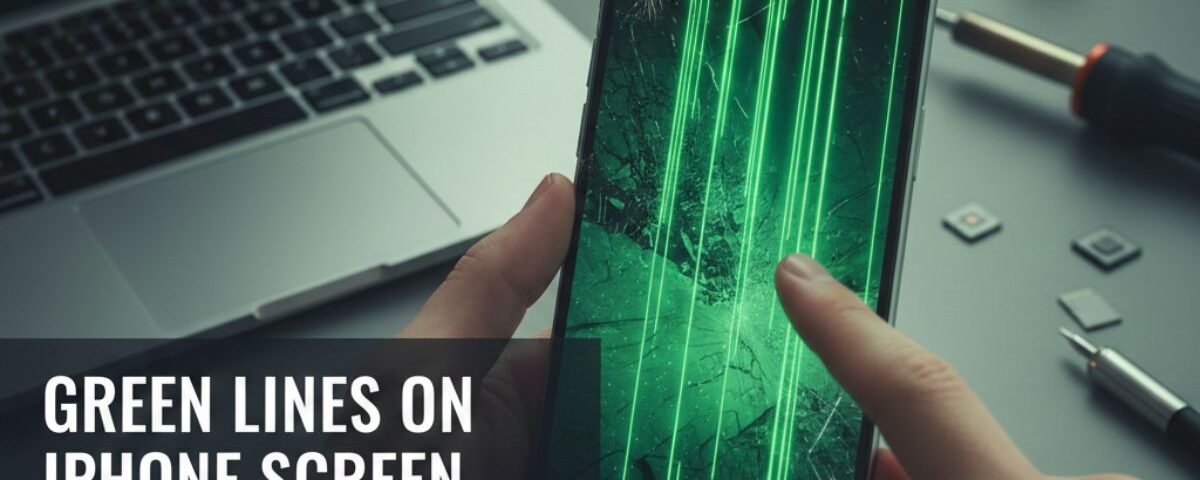
Green lines appearing on your iPhone screen can be alarming and frustrating, affecting both the display quality and usability of your device. These lines are often a sign of hardware issues, software glitches, or accidental damage, but the good news is that many problems have simple fixes. Understanding why these green lines appear is crucial before attempting any repair. Sometimes, outdated software or a buggy iOS update can cause screen malfunctions. Other times, physical damage, like drops or exposure to moisture, may be the culprit. Identifying the exact cause helps determine whether you can fix it at home or need professional assistance. In this guide, we’ll explore the most common reasons for green lines, step-by-step solutions, and tips to prevent them in the future. By following these strategies, you can restore your iPhone screen to its normal, crisp display and avoid long-term damage.
Understanding the Problem
Before we can fix anything, we need to understand the enemy. Why did that green intruder show up in the first place?
What Causes Green Lines on an iPhone Screen?
When you see those neon stripes, it usually boils down to two main suspects: hardware trouble or software confusion.
Hardware Issues are physical problems. Your phone is a sandwich of glass, metal, and very sensitive electronics.
- OLED/LCD Damage: Most modern iPhones use OLED screens. These are amazing for colors, but they are also delicate. If the connection between the screen and the phone’s brain gets loose or damaged, it can cause a “short circuit” in the pixels, resulting in a solid green line.
- Water Damage: Did your phone take a swim recently? Even a splash of water can sneak inside and mess with the display connectors.
- Physical Impact: Drops happen. Even if the glass on the outside isn’t cracked, the shock of hitting the floor can break tiny components inside.
Software Glitches are like your phone having a bad dream. Sometimes, the operating system (iOS) gets confused and tells the screen to light up the wrong colors. This can happen after an update or if an app is misbehaving.
Manufacturing Defects: Sometimes, it’s not you—it’s the phone. For example, some batches of the iPhone X were known to have manufacturing defects that caused this exact problem.
How to Identify the Root Cause of Green Lines?
So, is it a glitch or a break? Here is a simple way to play detective.
If the green lines on iPhone screen flicker, move around, or disappear when you switch apps, you might be dealing with a software glitch. This is good news because you can often fix it for free!
However, if the line is solid, stays in the exact same spot no matter what is on the screen, or appears immediately when you turn the phone on (even on the Apple logo screen), it is likely a hardware issue. This usually means a part needs to be replaced.
DIY Fixes for Green Lines
Before you spend any money or drive to a repair shop, let’s try some “Do It Yourself” magic. These steps are safe and won’t hurt your phone.
Restarting and Hard Resetting Your iPhone
Have you tried turning it off and on again? It’s a cliché for a reason—it works! A simple restart clears out temporary files and gives your phone’s brain a fresh start.
If a normal restart doesn’t work, try a Hard Reset (also called a Force Restart). This is like shaking your phone awake when it’s sleeping too deeply.
- For newer iPhones (iPhone 8 and up): Quickly press Volume Up, then Volume Down, then hold the Side button until the screen goes black and the Apple logo pops up.
- For older iPhones: The buttons are different, but the goal is the same.
If the line vanishes after the reboot, congratulations! It was just a glitch.
Updating iOS to Resolve Software Glitches
Sometimes, Apple knows about a bug and sends out a fix in an update. If your iOS is outdated, your phone might be struggling with old instructions.
Go to Settings > General > Software Update. If there is an update waiting, install it. This might just smooth out the software confusion causing the display issue.
Cleaning Connectors and Adjusting Display Settings
This one is a bit of a long shot, but worth a try. Sometimes dust or lint gets stuck in the charging port or headphone jack (if you still have one!) and causes static that messes with the screen. Use a soft brush or a puff of air to clean them out.
Also, try playing with your brightness. Turn it all the way up and then all the way down. Sometimes, shifting the voltage to the screen can “unstuck” a pixel, though this is usually a temporary fix.
Using Third-Party iOS Repair Apps: Are They Worth It?
You might see ads for apps that promise to “fix dead pixels” by flashing wild colors on your screen for hours. While these look cool, be careful. They rarely fix physical green lines on iPhone screen caused by loose cables or cracks. If it’s a stuck pixel, they might help, but for a solid green line, they are usually a waste of time. Stick to the official fixes first.
Professional Repair Options
Okay, you tried the reboot, you did the update, and the line is still staring at you. It’s time to call in the cavalry.
Should You Replace Your iPhone Screen?
If the line is permanent, iPhone screen replacement is usually the only cure. This involves taking the phone apart and putting in a brand-new display panel.
When is it necessary? If the line blocks your view, if the touch screen stops working in that area, or if the line is spreading, you need a replacement. Ignoring it can sometimes lead to the whole screen going black, which is definitely worse.
Cost of Screen Replacement in Canada:
Talking about money is important. In Canada, repair costs vary.
- Official Apple Repair: This is the most expensive but safest option. Depending on your model, it can range from $350 to $500+ CAD.
- Third-Party Shops: Places like uBreakiFix or local mall kiosks are often cheaper. You might pay between $150 and $300 CAD. Just make sure they use high-quality parts!
Apple Support vs. Third-Party Repair Services
Apple Support:
- Pros: They use genuine Apple parts. Their work is guaranteed. If they mess up, they fix it.
- Cons: It can be pricey. You might have to wait for an appointment or mail your phone away.
Third-Party Repair Services:
- Pros: Usually faster (sometimes done in an hour!). Often cheaper.
- Cons: Parts might not be “official” Apple quality. If they break something else, Apple might refuse to fix it later.
How to Find Authorized Repair Centers in Canada:
Go to the Apple website and use their locator tool. Look for “Authorized Service Providers.” These are shops that aren’t Apple Stores but have Apple’s blessing (and parts) to fix your phone correctly.
Preventive Measures

Once you get your phone fixed (or if you buy a new one), you want to make sure this never happens again.
How to Protect Your iPhone Screen from Future Damage
Think of your phone like an egg. You wouldn’t carry an egg in your pocket without protection, right?
- Screen Protectors: A $20 piece of tempered glass can save you a $400 repair. If you drop your phone, the protector shatters, not your actual screen.
- Cases: Get a case with a “lip”—edges that stick out slightly past the screen. This means if your phone lands face-down, the case hits the floor, not the glass.
- Avoid Water: Even if your phone says it is “water-resistant,” that protection wears off over time. Keep it away from the pool, the bath, and the toilet!
Regular Maintenance Tips for iPhone Screens
Keep your phone happy with regular check-ups.
- Update Often: Don’t ignore those update notifications.
- Clean Gently: Use a microfiber cloth to wipe the screen. Don’t use window cleaner; it can strip away the special coating that keeps fingerprints off.
Unique Additions
Let’s look at some things most people forget to ask about.
What Are the Alternatives to Screen Replacement?
If you can’t afford a repair right now, do you have options?
- Live With It: If the line is on the edge and the touch still works, you can keep using the phone. It’s annoying, but not dangerous.
- Assistive Touch: If the green line makes a part of your screen unresponsive to touch, go to Settings > Accessibility > Touch > AssistiveTouch. This puts a little virtual button on your screen that can do all the heavy lifting for you.
- External Display: Need to get photos off the phone but can’t see the screen? Plug it into a TV or monitor using a lightning-to-HDMI adapter. You can see your screen on the big TV and save your data.
Can Green Lines Be Covered Under Warranty or Insurance?
This is the big question!
- AppleCare+: If you bought AppleCare+, you are in luck. Green lines on iPhone screen are usually covered. You might only have to pay a small “deductible” fee (around $39 CAD for screen damage).
- Standard Warranty: If your phone is less than a year old and has no cracks or water damage, Apple might fix it for free as a “defect.”
- Consumer Protection Laws in Canada: In some provinces like Quebec, consumer protection laws are very strong. They say a product must last a “reasonable amount of time.” If your expensive phone breaks in 13 months, the law might force the manufacturer to repair it, even if the warranty was only 12 months. It’s worth asking about!
Conclusion
Green lines on an iPhone screen are not always a sign of permanent damage, and many issues can be resolved with simple troubleshooting. Regular software updates, careful handling, and avoiding moisture exposure can prevent most screen problems. If DIY solutions don’t work, seeking professional repair ensures your device is fixed safely and effectively. By understanding the causes and solutions, you can maintain a clear, vibrant display for years. Taking preventive measures now can save time, money, and frustration in the future.
FAQs
Green lines on an iPhone screen usually indicate hardware or software issues. Hardware problems can include a damaged display connector, a faulty screen, or accidental drops and pressure on the device. Software-related causes often involve iOS bugs, outdated firmware, or glitches during updates. Identifying the exact cause is essential, as minor software fixes can resolve the problem, but hardware issues may require professional repair.
Yes, some green line issues can be resolved at home. Start by restarting your iPhone, updating to the latest iOS version, or performing a force restart. Resetting display settings or restoring your device through iTunes/Finder can also help. However, if the lines persist after software troubleshooting, it may indicate a hardware problem that requires professional attention to avoid worsening the damage.
Absolutely. Exposure to water or high humidity can damage the internal components of your iPhone, including the display connectors. Even minor moisture can lead to green lines, flickering, or other display anomalies. If your iPhone has been exposed to water, it’s crucial to power it off immediately and avoid charging it. Seeking professional repair is often necessary to fully resolve the issue without causing further damage.
The cost varies depending on your iPhone model and the severity of the issue. If it’s a software problem, it may be free to fix at home. For hardware-related problems, screen replacements at official Apple service centers typically range from $150 to $400, while third-party repairs may cost slightly less. Always weigh the risks of third-party repairs against official services to ensure quality and avoid voiding warranties.
Yes, prevention is possible with careful device handling. Avoid dropping your iPhone or applying excessive pressure to the screen. Keep your device away from water and extreme temperatures. Regularly update your iOS to fix bugs and maintain smooth performance. Using a protective case and screen guard can also help minimize damage, reducing the chances of green lines appearing in the future.
