

iPhone Not Charging? Step-by-Step Solutions to Fix It
December 25, 2025
iPhone Speaker Not Working? Common Causes and Proven Fixes
December 31, 2025iPhone Battery Drain Issues How to Make Your Battery Last Longer
If your iPhone battery seems to drain faster than usual, you’re not alone. Many users experience unexpected battery drops even with minimal usage. This can be frustrating, especially when you rely on your phone throughout the day for work, communication, and entertainment. Battery drain can be caused by multiple factors, including background apps, outdated software, or battery health degradation. Sometimes, settings like location services, push notifications, and screen brightness can also consume more power than you realize. Identifying the root cause is crucial to extending your iPhone’s battery life. Fortunately, there are practical solutions and simple habits you can adopt to improve battery performance. By understanding how your iPhone uses power, you can take proactive steps to ensure it lasts longer between charges. Let’s explore the main reasons behind battery drain and how to fix them effectively.
Understanding iPhone Battery Drain
Before we jump into the fixes, let’s get to the bottom of why this happens. Understanding the “why” makes it much easier to solve the problem for good.
What Causes iPhone Battery Drain?
You might be surprised to learn what’s secretly eating up your battery. An iPhone battery draining fast isn’t always because the battery is old. Often, it’s the little things that add up.
- Background Apps: Think of apps running in the background like leaving a light on in a room you’re not in. Many apps refresh content, track your location, or send you updates even when you’re not using them. This constant activity is a major power hog.
- A Super Bright Screen: Your iPhone’s screen is beautiful, but keeping it at full brightness is like turning on a giant spotlight. It uses a massive amount of energy. Combined with a long Auto-Lock time, your screen could be draining your battery even when you’re not looking at it.
- Location Services: GPS is incredibly helpful for maps, but many apps ask for your location when they don’t really need it. Every time an app checks where you are, it uses up a little bit of battery. Over a day, that adds up.
- Software Updates: Have you ever noticed your battery seems worse right after a big iOS update? That’s because your phone is working overtime in the background to organize everything, a process called indexing. It usually settles down after a day or two.
- Extreme Temperatures: Batteries are a bit like people; they don’t like being too hot or too cold. Leaving your phone in a hot car or out in the freezing cold can seriously harm its ability to hold a charge.
- Pesky Port Problems: Sometimes, the problem isn’t the battery but the charging port itself. A little bit of dust or lint can prevent your phone from charging properly, leading you to think the battery is the issue.
How to Check Your iPhone’s Battery Health
Your iPhone has a built-in tool that tells you exactly how healthy its battery is. It’s like a check-up for your phone. Knowing this information is the first step in figuring out if you need a simple settings tweak or a new battery.
Here’s how to check battery health on your iPhone:
- Open the Settings app.
- Scroll down and tap on Battery.
- Tap on Battery Health & Charging.
You’ll see a percentage next to “Maximum Capacity.” When your phone is brand new, this will be 100%. Over time, as you use and charge your phone, this number will slowly go down. If your battery health is below 80%, Apple considers it worn out. At that point, it just can’t hold as much power as it used to, and you might want to think about getting a replacement.
Quick Fixes to Save Battery Life
Ready for some good news? You can make a huge difference in your battery life with just a few simple taps. These quick fixes are easy to do and can give you hours of extra power.
Enable Low Power Mode
This is the number one trick to improve iPhone battery life. When you turn on Low Power Mode, your iPhone temporarily reduces some background activity, like fetching new emails and automatic downloads. It’s a lifesaver when you’re running low on juice.
You can turn it on by going to Settings > Battery and toggling on Low Power Mode. You can also add it to your Control Center for super-quick access.
Adjust Auto-Lock and Brightness Settings
This is one of the easiest tips to save iPhone battery life. Your screen uses more power than almost anything else.
- Lower Your Brightness: Swipe down from the top-right corner to open the Control Center and slide the brightness bar down.
- Set a Shorter Auto-Lock: Go to Settings > Display & Brightness > Auto-Lock and set it to 30 seconds. This ensures your screen isn’t on when you’re not using it.
Turn Off Background App Refresh
Many apps are constantly working in the background. While useful for some, it’s a huge drain on your battery.
Head to Settings > General > Background App Refresh. You can turn it off completely or choose to only allow it when you’re on Wi-Fi. A good strategy is to go through the list and turn it off for apps that you don’t need constantly updated, like games or social media apps you only check occasionally.
Reduce Push Notifications
Every time your phone lights up with a notification, it uses a little bit of power. Do you really need to know every time someone likes your photo right away?
Go to Settings > Notifications and go through your apps. Turn off notifications for any app that isn’t essential. This will not only save your iPhone battery but also help you stay more focused.
Optimize Location Services
Some apps need your location to work, but many don’t. You can decide which apps get access and when.
Go to Settings > Privacy & Security > Location Services. Review the list of apps and change their access to “While Using the App” or “Never.” For most apps, “While Using” is the perfect balance.
Advanced Tips for Long-Term Battery Optimization
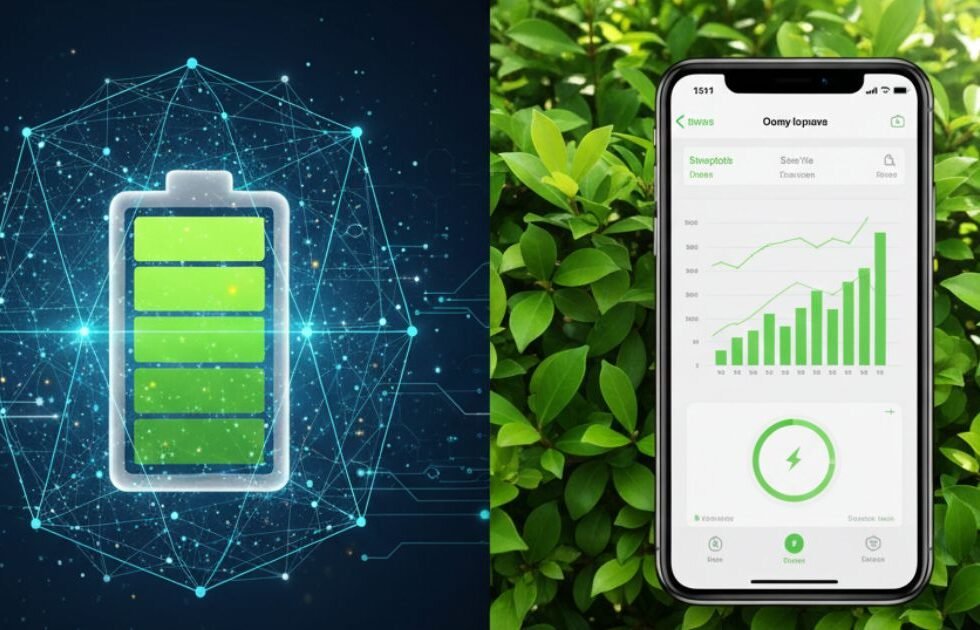
Once you’ve made the quick fixes, you can take things a step further. These advanced tips will help you build good habits and optimize your settings for the best possible long-term battery health.
Use Wi-Fi Over Cellular Whenever Possible
Did you know that using Wi-Fi consumes less power than using a cellular connection (like 4G or 5G)? When you’re at home, work, or a coffee shop, make sure you’re connected to Wi-Fi. Your phone doesn’t have to work as hard to get a signal, which saves precious battery life.
Avoid Extreme Temperatures
Your iPhone’s battery works best between 62° to 72° F (16° to 22° C). Extreme heat can permanently damage your battery’s capacity. So, try not to leave your phone in a hot car, on a sunny windowsill, or anywhere it might overheat. Cold weather can also temporarily reduce battery life, but it usually returns to normal once the phone warms up.
Calibrate Your iPhone Battery
Sometimes, the battery percentage you see isn’t quite accurate. Calibrating your battery helps your iPhone get a more precise reading of its power level.
Here’s how to do an iPhone battery calibration:
- Charge your phone to 100%.
- Use your phone normally until it completely dies and shuts off.
- Let it sit for a few hours.
- Charge it back to 100% without interruption.
Doing this once every few months can help keep your battery readings accurate.
Optimize Settings for Heavy App Users
If you’re a gamer, a photographer, or someone who streams a lot of videos, you’re putting your battery through a workout. For iPhone battery-saving tips for gamers, try lowering the in-game graphics settings. If you love streaming, downloading videos over Wi-Fi to watch later can save a ton of power compared to streaming over cellular data.
Troubleshooting Common Battery Issues
Even with the best habits, you might still run into problems. Here’s how to troubleshoot some of the most common and frustrating battery issues.
Why Is My iPhone Battery Draining After an iOS Update?
It’s one of the most common complaints: “My iPhone battery drained fast right after the latest update!” This is usually temporary. After a major update, your phone does a lot of housekeeping in the background, like re-indexing your files and photos. This process is intensive and drains the battery.
The best solution is patience. Give your phone a day or two to finish its work. Make sure it’s plugged in overnight. If the problem persists after a week, there might be a bug in the update, and you should check for a newer patch from Apple.
What to Do If Your iPhone Battery Drains While Charging
This is a scary one. If your battery percentage is going down even while it’s plugged in, it’s a clear sign that something is wrong.
First, check your equipment. Are you using a certified Apple charger and cable? Cheap, third-party accessories can be unreliable and even dangerous. Also, check the charging port for any lint or debris and gently clean it out with a toothpick. If you’ve checked everything and it’s still happening, it could be a hardware problem, and it’s time to contact Apple Support or visit a repair shop.
Preventative Measures to Extend Battery Life
The best way to deal with battery problems is to prevent them from happening in the first place. Here’s how you can keep your battery healthy for years to come.
Best Practices for Charging Your iPhone
How you charge your phone matters. To keep your battery happy, try to keep it between 20% and 80%. You don’t need to charge it to 100% every time, and you shouldn’t let it die completely too often.
Your iPhone also has a feature called “Optimized Battery Charging” (Settings > Battery > Battery Health & Charging). This learns your daily routine and waits to finish charging past 80% until you need it, which reduces battery aging.
How to Monitor and Manage Battery Usage
Make it a habit to check your battery usage. Go to Settings > Battery and scroll down. You’ll see a chart showing your battery level over the last 24 hours and which apps used the most power. This is the best way to find out what’s draining your battery. If you see an app using a lot of power that you barely opened, you’ve found a culprit.
When to Replace Your iPhone Battery
All batteries eventually wear out. If you’ve tried all these tips and are still seeing your iPhone battery draining fast, it might be time for a replacement. As a rule of thumb, if your battery’s maximum capacity is below 80%, a new battery will feel like a brand-new phone.
You can get your battery replaced by Apple or an authorized service provider. It’s a worthwhile investment to restore your phone’s performance and make it last all day again.
Conclusion
A fast-draining iPhone battery doesn’t always mean your device is broken. Most of the time, it’s a result of settings, apps, or software issues that can be optimized. By managing background activity, keeping your iPhone updated, and monitoring battery health, you can significantly improve battery life. Simple changes, like adjusting screen brightness and turning off unnecessary features, can make a noticeable difference. With consistent care and mindful usage, your iPhone battery can last longer and keep up with your daily demands.
FAQs
Several factors can cause fast battery drain, including background apps, push notifications, location services, and high screen brightness. Additionally, older iPhone batteries naturally lose capacity over time, reducing overall battery life. Software bugs or outdated iOS versions can also contribute to faster energy consumption. Regularly checking battery usage in settings can help identify the apps or features that consume the most power, allowing you to take corrective action.
Improving battery life involves a combination of software and usage adjustments. Reducing screen brightness, enabling Low Power Mode, disabling unnecessary notifications, and limiting background app refresh are effective steps. Updating your iPhone to the latest iOS version ensures optimal performance. Additionally, keeping your battery between 20–80% charge rather than constantly fully charging or draining it can prolong battery health over time.
Yes, iPhone batteries are lithium-ion, which naturally degrade with usage over time. This means the maximum battery capacity gradually decreases, resulting in shorter usage periods between charges. Apple provides a Battery Health feature in settings that shows your battery’s maximum capacity and peak performance capability. If your battery health drops significantly, replacing the battery can restore full performance and longer battery life.
Modern iPhones are designed with smart charging features that prevent overcharging. However, consistently keeping your phone at 100% charge for extended periods can slightly accelerate battery wear. Using optimized battery charging, available in iOS, helps reduce stress on the battery by learning your charging habits and slowing charging overnight. For maximum battery longevity, avoid extreme temperatures while charging.
Apps that use constant background activity, location services, or streaming can consume significant battery power. Social media apps, navigation apps, and video streaming platforms are often the main culprits. Checking “Battery Usage” in iPhone settings can provide a breakdown of which apps consume the most energy. Limiting background activity, closing unused apps, or adjusting permissions can help reduce battery drain from these high-consuming apps.
