

iPhone Screen Replacement Cost Process and What to Expect
December 24, 2025
iPhone Battery Drain Issues How to Make Your Battery Last Longer
December 29, 2025iPhone Not Charging? Step-by-Step Solutions to Fix It
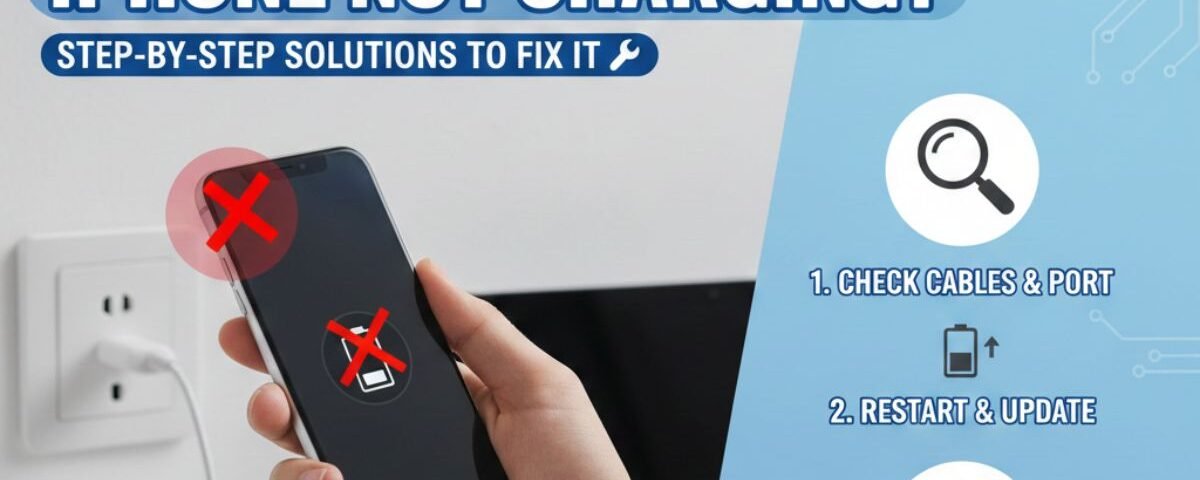
Experiencing an iPhone that won’t charge can be frustrating, especially when you rely on it for daily tasks. Charging issues can arise due to a variety of reasons, including faulty cables, dirty charging ports, or software glitches. Sometimes, the problem may be related to your power adapter or even the iPhone’s battery itself. Identifying the exact cause is crucial to fixing the issue effectively. Many users try multiple solutions without success because they don’t follow a systematic approach. In this guide, we will explore simple yet effective steps to troubleshoot iPhone charging problems. Whether you have an older iPhone or the latest model, these solutions can help you get your device back to working condition. By the end of this guide, you will understand the most common causes of charging issues and how to resolve them safely.
What Are the Most Common iPhone Charging Problems?
When an iPhone won’t charge, the issue usually falls into one of a few categories. Identifying the exact problem helps you find the right solution faster.
Charging Port Not Working: You plug in the cable, but nothing happens. This often looks serious, but lint or dust in the port is a common cause.
iPhone Not Recognizing the Charger: You may see a message like “Accessory Not Supported or Certified.” This usually happens with damaged or non-certified charging accessories.
Slow or Intermittent Charging: Your phone charges very slowly or keeps connecting and disconnecting. This often points to a weak power source or a faulty cable.
Wireless Charging Not Working: You place the phone on a charging pad, but charging does not start. Misalignment, thick cases, or charger issues are common reasons.
How to Fix iPhone Charging Issues at Home
Before visiting a repair shop, try these simple fixes. Many iPhone not charging problems can be solved at home.
Cleaning the Charging Port: Dos and Don’ts
The charging port collects dust, lint, and debris over time. This can block the charging cable.
Do: Turn off your iPhone. Use a wooden or plastic toothpick to gently remove debris. A soft, dry toothbrush also works well.
Don’t: Never use metal objects. Avoid blowing air with your mouth, as moisture can damage internal parts.
Testing Cables, Adapters, and Power Sources
Often, the problem is not the phone.
Check the Cable: Look for fraying or bends. Try another MFi-certified cable.
Check the Adapter: Swap the wall adapter or plug the cable into a computer.
Check the Power Source: Try a different wall outlet. Avoid power strips when testing.
Restarting and Resetting Your iPhone
A restart can fix minor software glitches.
To restart, press and hold the side button until the power slider appears. Turn the phone off, wait 30 seconds, then turn it back on.
If needed, try a force restart, especially if the screen is frozen.
Updating Software to Fix Bugs
Outdated software can cause charging problems.
Go to Settings > General > Software Update. Install any available updates to fix bugs and improve system performance.
What to Do If Your iPhone Still Won’t Charge?
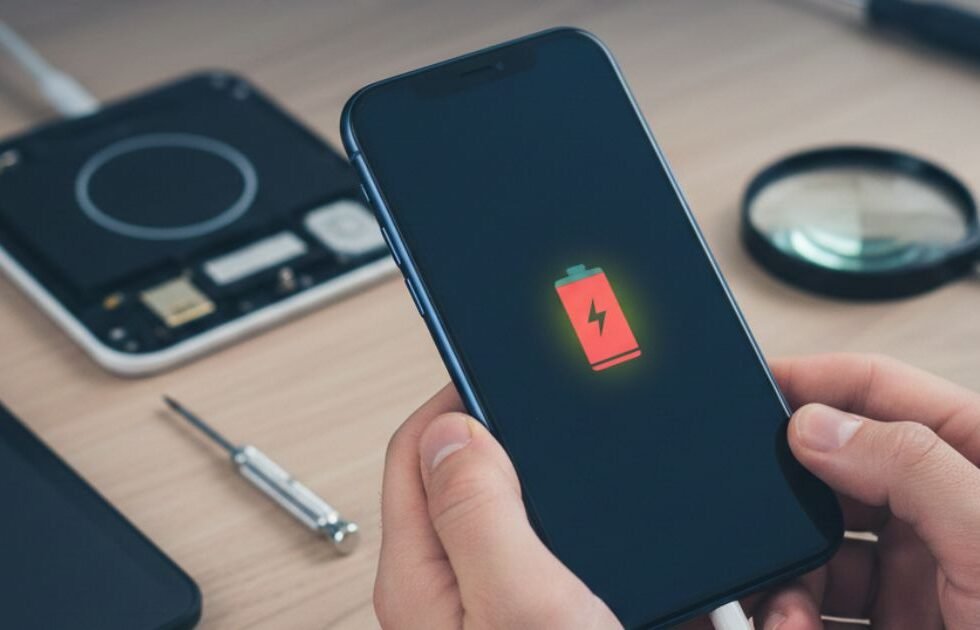
If your iPhone charging port is still not working, try deeper troubleshooting.
Advanced Troubleshooting Steps
Check for Physical Damage: Use a flashlight to look inside the charging port. Bent pins or corrosion usually require professional repair.
Diagnose Overheating Issues: iPhones stop charging when too hot. If the phone feels warm, unplug it and let it cool down.
Test Wireless Charging Alignment: Make sure the phone is centered on the pad. Remove thick or metal cases.
When to Consider a Factory Reset
A factory reset is a last-resort software fix. It erases all data, so back up first.
Go to Settings > General > Transfer or Reset iPhone > Erase All Content and Settings.
Professional Repair Options in Canada
If home fixes fail, professional repair is the safest option. Many repair centers in Canada offer fast and affordable solutions.
Choose a service that:
- Uses high-quality parts
- Offers a warranty
- Provides clear pricing
A professional iPhone charging port repair often costs far less than replacing the phone.
How to Prevent Charging Problems in the Future
Simple habits can prevent future iPhone charging issues.
Use Certified Accessories: Always use MFi-certified chargers from trusted brands.
Reduce Stress on the Charging Port: Wireless charging helps reduce wear and tear.
Protect Your Phone: Keep it away from dust, sand, and moisture. A case with a port cover can help.
Lesser-Known Causes of Charging Issues
Some problems are less obvious.
Third-Party Apps: Poorly coded apps can cause software conflicts. Remove recently installed apps if issues start suddenly.
Rare Hardware Failures: Logic board issues require expert repair and diagnosis.
Environmental Factors: High humidity can cause corrosion, even without water exposure.
Conclusion
iPhone charging problems are common, but most issues can be fixed with some careful troubleshooting. Checking cables, cleaning ports, and restarting your device are simple first steps that often work. If the problem persists, it may be a hardware issue requiring professional help. Regular maintenance and careful handling of your charging accessories can prevent future problems. With the right approach, you can ensure your iPhone remains powered and reliable throughout the day. Following these solutions can save time, money, and unnecessary frustration.
FAQs
Even with an original charger, your iPhone may not charge due to a dirty or damaged charging port, a faulty cable, or a software glitch. Dust, lint, or debris can accumulate in the lightning port, preventing proper contact. Restarting your device or trying a different cable or adapter can help identify the cause. If the issue persists, your battery or internal hardware may need professional inspection.
Yes, sometimes charging issues are caused by software bugs. Updating your iPhone to the latest iOS version can fix known glitches that prevent charging. It’s also helpful to restart your phone after the update. However, if the problem is hardware-related, software updates alone will not solve it, and additional troubleshooting will be necessary.
To clean the port, turn off your iPhone first. Use a small, soft-bristled brush or a toothpick to gently remove dust and lint. Avoid using sharp metal objects, which can damage the internal contacts. Compressed air can also help remove debris without harming the device. Regular cleaning can prevent charging issues caused by dirt accumulation.
Yes, both high and low temperatures can interfere with charging. iPhones are designed to operate best between 0°C and 35°C (32°F to 95°F). Charging in extreme cold or heat can slow down the process or temporarily stop it. Avoid leaving your iPhone in direct sunlight, near heaters, or in freezing conditions to maintain battery health.
If you’ve tried all basic troubleshooting steps—cleaning the port, using a new cable and adapter, restarting the device—and your iPhone still won’t charge, it’s time to consult a professional. Hardware issues such as a damaged battery, faulty charging IC, or liquid damage require expert repair. Prompt attention can prevent further damage and ensure your iPhone functions properly.
