

iPhone Running Slow Simple Solutions That Actually Work
December 18, 2025
Refurbished vs New iPhone: Pros, Cons, and Buying Guide
December 20, 2025iPhone Touch Not Working? Causes, Fixes, and Easy Solutions

An iPhone touch screen not working can be frustrating, especially when you rely on your device for daily tasks. This issue can appear suddenly or develop over time due to various software or hardware reasons. Sometimes the screen becomes partially unresponsive, while other times it stops working entirely. Users often panic, assuming the phone is permanently damaged, but that’s not always the case. Many touch issues are caused by minor glitches that can be fixed easily at home. From iOS bugs to physical damage, there are multiple possible causes. Understanding the root problem is the first step toward a solution. This guide explains common causes, effective fixes, and simple solutions you can try. With the right steps, your iPhone touch screen can often be restored without costly repairs.
Understanding iPhone Touch Screen Technology
Have you ever wondered what kind of magic makes your iPhone screen respond to your every touch? It’s not magic, but it is pretty clever. Think of your screen as having two main layers working together: the display that shows you pictures (the LCD or OLED) and a transparent touch-sensitive layer on top called the digitizer.
The digitizer is the part that feels your touch. When your finger taps or swipes across the screen, it senses the location and pressure of your touch. It then translates that information into a signal that the iPhone’s “brain,” or processor, can understand. This is how it knows whether you’re trying to open an app, type a message, or zoom in on a photo.
These signals are sent through tiny, delicate ribbon-like cables called connectors, which plug directly into the phone’s main circuit board. If the digitizer is damaged or one of these connectors comes loose, the touch signals can’t get through, and your screen stops responding. Sometimes the problem isn’t with the hardware at all, but with the software—the operating system that runs your phone.
Identifying the Root Cause of the Problem
Before you can fix the problem, you need to play detective and figure out what’s causing it. Is it a software glitch or a hardware failure? Answering this question will help you find the right solution faster.
Software vs. Hardware Issues: How to Differentiate
A software issue is usually a temporary bug in the iPhone’s operating system (iOS). It might happen after an update or if an app crashes. A good sign of a software problem is if the screen becomes unresponsive suddenly but there has been no physical damage to the phone. A simple restart or a hard reset often fixes these kinds of glitches.
A hardware issue, on the other hand, involves the physical parts of your phone. Maybe you dropped it, or it got wet. Signs of a hardware problem include a cracked screen, flickering lights, or certain areas of the screen not working while others do. If you see visible damage or if the touch screen problems started right after an accident, it’s likely a hardware issue with the digitizer or its connectors.
Signs of Water Damage or Physical Impact
Look closely at your phone. Do you see any cracks, even tiny ones, on the screen? A small crack can be enough to damage the delicate digitizer underneath. Another thing to check for is water damage. Most iPhones have a Liquid Contact Indicator (LCI) inside the SIM card slot. If this indicator has turned red or pink, it means your phone has been exposed to moisture, which could be the cause of your iPhone touch screen not working.
Diagnosing Ghost Touch and Sensitivity Problems
Sometimes the screen isn’t completely unresponsive; it just acts weird. “Ghost touch” is when your iPhone acts like someone is touching the screen, but nobody is. It might open apps on its own or type random letters. This can be caused by a faulty screen protector, a software bug, or a damaged digitizer.
On the flip side, you might have sensitivity issues where the screen is either too sensitive or not sensitive enough. It might register a touch when your finger is just hovering over it, or you might have to press really hard to get a response. These problems often point to either a screen calibration issue or a hardware fault
Step-by-Step Troubleshooting for Beginners
Let’s start with the easiest fixes first. These simple steps solve a surprising number of iPhone problems, so they’re always worth a try before you panic.
Restarting and Resetting Your iPhone
The classic “turn it off and on again” is a classic for a reason—it works! A simple restart can clear out minor software glitches that might be causing your screen to freeze. If you can’t restart it the usual way because the screen is unresponsive, you can perform a “hard reset.” This is like a more forceful restart and doesn’t erase any of your data.
Here’s a quick guide on how to hard reset your iPhone:
- For iPhone 8 or newer (including iPhone X, XS, and recent models): Quickly press and release the Volume Up button. Then, quickly press and release the Volume Down button. Finally, press and hold the Side button until you see the Apple logo appear.
- For iPhone 7: Press and hold both the Volume Down button and the Sleep/Wake button at the same time. Keep holding them until the Apple logo appears.
Cleaning and Inspecting the Screen
Dirt, dust, oils from your fingers, or even a bit of moisture can interfere with the digitizer. Get a soft, lint-free cloth (like the one you use to clean glasses) and gently wipe down the screen. Avoid using harsh chemicals or abrasive materials. While you’re cleaning, take a close look at the screen for any small cracks you might have missed before.
Removing Conflicting Accessories
Sometimes, the problem isn’t your phone at all, but its accessories. A poorly fitting case can put pressure on the edges of the screen, and some screen protectors can interfere with touch sensitivity. Carefully remove your case and any screen protector. Once they’re off, test your screen again. If it starts working, you’ve found your culprit!
Advanced Solutions for Persistent Issues
If the beginner tricks didn’t work, it’s time to try some more advanced techniques. These steps are a bit more involved but can often solve stubborn software-related screen problems.
How to Recalibrate Your iPhone Touch Screen
While iPhones don’t have a manual calibration setting like some other devices, you can “reset” the touch sensitivity settings. Go to Settings > Accessibility > Touch > Touch Accommodations. Here, you can adjust settings like “Hold Duration” and “Ignore Repeat.” Toggling these settings on and off can sometimes reset the touch input and resolve sensitivity issues. This is a good step to try if your screen is overly sensitive or lagging.
Using Accessibility Features to Bypass Touch Issues
If a part of your screen is completely dead, Apple’s AssistiveTouch feature can be a lifesaver. This feature puts a small menu on your screen that you can move around to a responsive area. From this menu, you can perform gestures like pinching, swiping, or tapping that you would normally do with your fingers. To turn it on, ask Siri to “Turn on AssistiveTouch,” or go to Settings > Accessibility > Touch > AssistiveTouch.
Restoring Your iPhone via iTunes or Finder
If you suspect a major software problem is the reason your iPhone touch screen not working correctly, you can restore your iPhone to its factory settings. This will erase all your data, so it is absolutely essential to back up your phone first! You can back up to iCloud or your computer.
To restore your iPhone, connect it to a computer. If you have a Mac with macOS Catalina or newer, open Finder. If you have an older Mac or a PC, open iTunes. Select your iPhone, and then choose the “Restore iPhone” option. This will reinstall a fresh version of iOS on your device, which can fix deep-seated software bugs.
DIY Repairs: Is It Worth the Risk?
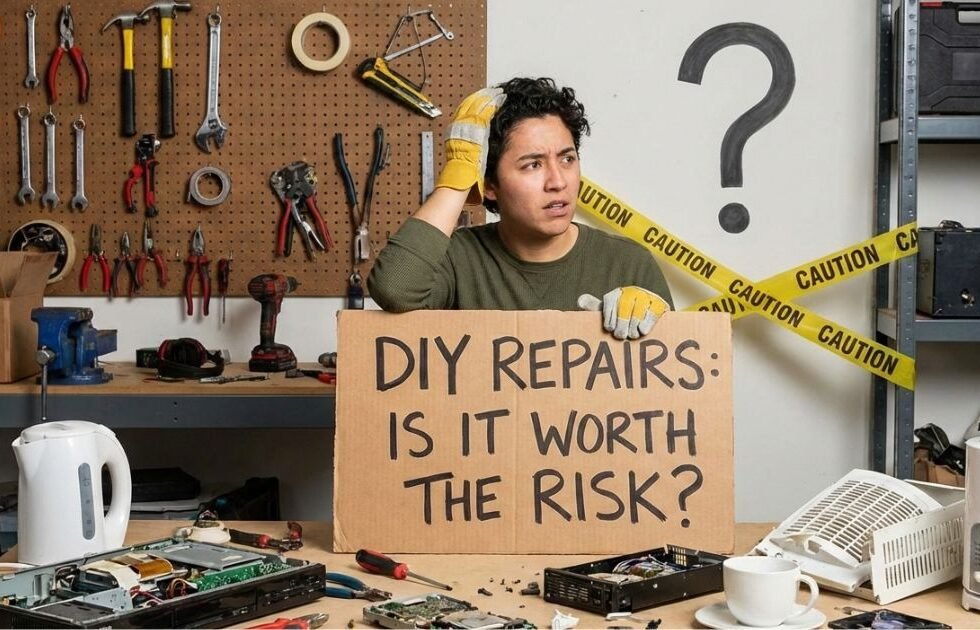
So, you’ve tried all the software fixes, and your screen is still giving you the cold shoulder. It’s likely a hardware problem. You might be tempted to try a DIY repair to save some money. But is it a good idea?
When to Attempt a DIY Repair
If you’re comfortable with technology, have steady hands, and enjoy tinkering with electronics, a DIY screen replacement might be for you. It can be a rewarding experience and is often cheaper than a professional repair. However, if the thought of working with tiny screws and delicate cables makes you nervous, it’s probably best to leave it to the pros.
Tools and Resources for Screen Replacement
If you decide to go for it, make sure you have the right tools. You’ll need a special toolkit that includes pentalobe screwdrivers, a suction cup, plastic prying tools, and tweezers. You can buy these kits online. Reputable sites like iFixit also offer detailed, step-by-step guides and video tutorials for almost every iPhone model. It’s crucial to buy a high-quality replacement screen, as cheap ones can cause even more problems.
Risks of DIY Repairs: What You Need to Know
Repairing an iPhone is a delicate operation. It’s easy to damage the small connectors, tear a ribbon cable, or lose one of the microscopic screws. A mistake could lead to new problems, like a non-working camera, Face ID failure, or even a completely dead phone. Also, opening up your iPhone yourself will void any warranty you have with Apple.
Professional Repair Services in Canada
If DIY sounds too risky, getting professional help is your best bet. In Canada, you have several options for getting your iPhone screen repaired.
How to Choose a Reliable Repair Service
Your first choice is an Apple Store or an Apple Authorized Service Provider. They use genuine Apple parts, and their technicians are certified. This is the safest option, especially if your phone is still under warranty.
You can also go to a third-party repair shop. These shops are often cheaper and faster than going to Apple. However, the quality can vary. Look for shops with great online reviews, that offer a warranty on their repairs, and that are upfront about the quality of the parts they use.
Comparing Costs: Apple Store vs. Third-Party Shops
An out-of-warranty screen repair at an Apple Store in Canada can be quite expensive, often costing several hundred dollars depending on your iPhone model. Third-party shops are usually more affordable. It’s a good idea to call a few local shops to get quotes before making a decision. When comparing prices, always ask if the price includes labor and taxes.
What to Expect During a Professional Repair
When you take your phone in, the technician will first diagnose the problem to confirm it’s a screen issue. A screen replacement is usually a quick job, often taking less than an hour. A good repair shop will test the phone thoroughly after the repair to make sure everything is working perfectly before they hand it back to you.
Unique Section: Future-Proofing Your iPhone
Once your screen is fixed, you’ll want to keep it that way. Here are some tips to protect your iPhone from future touch screen troubles.
How to Avoid Touch Screen Issues in the Future
The best way to fix a problem is to prevent it from happening in the first place. Be mindful of how you handle your phone. Try not to drop it, and keep it away from water and extreme heat or cold. Regular software updates are also important, as Apple often includes bug fixes that can improve performance and stability. When your iPhone touch screen not working is a recurring nightmare, prevention is key.
The Best Screen Protectors and Cases for Durability
A high-quality tempered glass screen protector is one of the best investments you can make. It acts as a sacrificial layer, absorbing the impact from a drop and protecting the actual screen underneath. A good case with raised edges (a “lip”) around the screen can also provide excellent protection by preventing the screen from hitting a flat surface directly during a fall.
Tips for Handling Your iPhone in Extreme Conditions
iPhones are designed to work in temperatures between 0° and 35° C. Using your phone in very cold weather can temporarily shorten battery life and cause the screen to become less responsive. In hot conditions, the phone can overheat, which can damage internal components. Avoid leaving your phone in a hot car or in direct sunlight for long periods.
Conclusion
A non-responsive iPhone touch screen doesn’t always mean your device is beyond repair. In many cases, simple troubleshooting steps like restarting, updating iOS, or freeing up storage can resolve the issue. Software glitches are more common than users realize and are usually easy to fix. However, physical damage or water exposure may require professional repair. Acting quickly can prevent the problem from getting worse. By following the solutions and tips shared above, you can save both time and money. Always keep your iPhone updated and protected to avoid future touch screen problems.
FAQs
If your iPhone touch screen is completely unresponsive, it could be due to a serious software crash or hardware damage. Sometimes iOS freezes and stops registering touch inputs entirely. A forced restart often fixes this issue by refreshing system processes. If the problem persists after restarting, it may be related to a faulty display or digitizer. Water damage or a recent drop can also cause complete touch failure. In such cases, professional inspection is usually required.
Yes, sometimes an iOS update can introduce bugs that affect touch responsiveness. This usually happens when the update doesn’t install properly or conflicts with existing system files. Minor touch glitches after updates are often fixed with a restart or a follow-up patch from Apple. Resetting all settings can also help without deleting data. Keeping apps updated reduces compatibility issues. If the issue continues, restoring the iPhone via iTunes may be necessary.
A cracked screen can definitely impact how your iPhone responds to touch. Even small cracks can interfere with the digitizer, which detects finger movements. Over time, cracks may worsen and lead to dead zones on the screen. Dirt and moisture can enter through cracks, causing further damage. In some cases, touch may work intermittently before failing completely. Replacing the screen is the most reliable solution for this problem.
You can try several fixes without losing data, such as restarting your iPhone or performing a forced reboot. Updating to the latest iOS version often resolves touch-related bugs. Freeing up storage can improve overall system performance and touch response. Resetting all settings is another safe option that doesn’t erase personal files. Removing thick screen protectors or cases may also help. These steps are safe and effective for most users.
You should visit a repair center if none of the basic troubleshooting steps work. Persistent touch problems usually indicate hardware damage. If your iPhone has been dropped, exposed to water, or overheated, professional repair is recommended. Authorized service centers use genuine parts and proper diagnostics. Delaying repair can make the issue worse over time. Getting expert help ensures your iPhone functions properly again.
