

iPhone Repairs in Canada Complete Guide to Fast and Reliable Service
December 16, 2025
iPhone Touch Not Working? Causes, Fixes, and Easy Solutions
December 19, 2025iPhone Running Slow Simple Solutions That Actually Work
A slow iPhone can turn even simple tasks into a frustrating experience. Apps take longer to open, scrolling feels laggy, and basic features may stop responding smoothly. Over time, daily use, full storage, and background processes can reduce your iPhone’s performance. Many users assume their device is too old, but that is not always the case. In reality, small issues often cause major slowdowns. The good news is that most of these problems are easy to fix. You do not need advanced technical skills or expensive repairs to see improvement. With the right steps, your iPhone can feel fast again. This guide explains practical and proven solutions that actually work.
Understanding the Problem
It is not just your imagination. iPhones can become slower as time passes. There are clear reasons behind this issue, and once you know them, fixing the problem becomes much easier.
Why Does My iPhone Feel Slower Than Before?
Think of your iPhone as a small but powerful computer in your pocket. When it is new, everything is clean and organized. Over time, you download apps, take photos, save videos, browse the internet, and send messages. All of this uses memory and storage.
Now imagine a backpack. When it is empty, it feels light. As you add books and items, it becomes heavy and harder to carry. In the same way, when your phone fills up with data, it has more work to do. This is why an iPhone running slow often just needs a good digital cleanup.
The Science Behind iPhone Performance Decline
Several parts inside your iPhone control how fast it works. Let’s look at them in simple terms.
The Processor (The Brain): This part does all the thinking. Every app you open gives it more work. Too many tasks at once can slow things down.
The RAM (Short-Term Memory): RAM is like a desk where your phone keeps active apps. If the desk is crowded, your phone struggles to switch between tasks smoothly.
The Storage (Long-Term Memory): This is where photos, videos, apps, and files live. When storage is almost full, your
phone has no room to breathe. This is a major reason for iPhone slow performance.
The Battery (The Heart): An older battery cannot deliver power like a new one. To prevent shutdowns, Apple may slow the processor. This can also cause iPhone slow performance.
Now that you understand the cause, let’s fix the problem.
Step-by-Step Solutions
These simple steps can give your iPhone a noticeable speed boost. You do not need any technical skills to follow them.
Freeing Up Storage: Photos, Videos, and Files
Clearing storage is one of the fastest ways to improve speed.
Check Your Storage: Go to Settings > General > iPhone Storage. You will see what is using the most space.
Delete Unneeded Photos and Videos: Remove blurry photos, duplicates, and old videos. Do not forget to empty the Recently Deleted folder. This helps instantly.
Offload Unused Apps: In the storage menu, apps are listed by size. Offloading removes the app but keeps its data. This is a smart method for iPhone storage management.
Clear Out Old Messages: Old message threads with photos take up space. You can set messages to delete automatically after 30 days or one year.
Closing and Managing Background Apps
Apps running in the background use RAM. Too many open apps can slow your phone.
Swipe up from the bottom of the screen to see open apps. Swipe up on apps you are not using to close them. This is especially helpful for games and navigation apps.
Turning Off Unnecessary Features
Some features look nice but use extra power.
Widgets: Remove widgets you do not use by pressing and holding them.
Live Wallpapers: Animated wallpapers use more processing power. Switching to a still image can help speed.
Reduce Motion: Go to Settings > Accessibility > Motion and turn on Reduce Motion. This removes heavy animations and can make your phone feel faster.
Preventive Measures
Fixing a slow iPhone is helpful. Preventing it from slowing down is even better. Good habits can keep your phone fast for a long time. Small steps today can stop problems tomorrow.
How to Optimize iPhone Settings for Long-Term Speed
A few setting changes can greatly improve performance. These adjustments help keep your phone smooth and responsive.
Turn Off Background App Refresh: This feature allows apps to update in the background. While useful, it uses battery and processing power. Too many background updates can slow your phone. Go to Settings > General > Background App Refresh. You can turn it off or allow it only for key apps.
Limit Location Services: Many apps request access to your location. Not all of them need it all the time. Constant tracking can reduce speed. Go to Settings > Privacy & Security > Location Services. Change app access to “Never” or “While Using the App” instead of “Always.”
The Importance of Regular Maintenance
Just like cleaning your home, regular iPhone care keeps everything organized. Set a monthly reminder to delete old photos, offload unused apps, and clear your browser history. This habit helps prevent clutter and avoids an iPhone running slow.
Using Cloud Storage to Reduce Local Clutter
Saving everything on your phone can fill storage fast. Cloud services like iCloud Photos help solve this problem. Your full photos stay in the cloud, while smaller versions remain on your phone.
To enable this, go to Settings > [Your Name] > iCloud > Photos. Turn on “Sync this iPhone” and choose “Optimize iPhone Storage.” This is one of the best ways to manage iPhone storage and improve performance.
Unique and Overlooked Solutions
Some fixes are often ignored but can make a big difference. These tips help boost performance even more.
What Is Thermal Management, and How Can It Help?
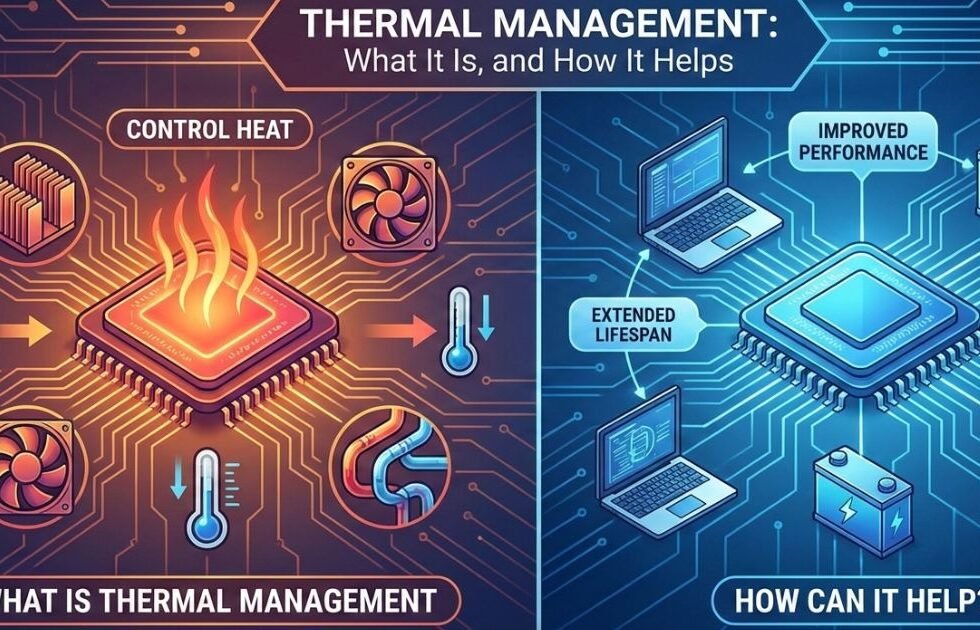
Your phone can get warm during gaming or navigation use. This means the processor is working hard. When an iPhone overheats, it activates thermal management. This safety feature slows the processor to prevent damage.
If your phone feels hot, give it time to cool down. Close heavy apps, remove the case, and place it in a cool area. Preventing heat helps avoid sudden slowdowns.
The Hidden Impact of Browser Tabs on iPhone Speed
Keeping many Safari tabs open uses memory. Some tabs refresh in the background. Together, they reduce performance.
Close tabs you no longer need. You can also automate this. Go to Settings > Safari > Close Tabs. Choose daily, weekly, or monthly cleanup. This is an easy step for better iPhone optimization.
How to Use Accessibility Features to Improve Performance
Accessibility settings can also improve speed. These tools reduce visual effects that strain your phone.
Increase Contrast: Go to Settings > Accessibility > Display & Text Size. Turn on “Increase Contrast.” This reduces transparency and helps the graphics processor.
Reduce Motion: This feature is very effective. Turning it on removes heavy animations. Your phone will feel faster immediately.
Tools and Resources
Sometimes extra tools help clean up your phone more efficiently.
Recommended Apps for iPhone Cleanup
iOS handles many tasks well, but cleanup apps can help. Apps like “Gemini Photos” find duplicates and blurry images. This makes deleting junk easy. Always download apps from trusted App Store developers.
How to Check for Malware on Your iPhone
Malware is rare but possible. It can slow your phone, drain the battery, and cause odd behavior. If your iPhone running slow includes pop-ups or unknown apps, take action.
You cannot scan iPhones like other devices. Instead:
- Clear browser history (Settings > Safari > Clear History and Website Data)
- Restart your iPhone
- Update to the latest iOS version
Updates include security fixes that remove threats.
When to Seek Professional Help
If nothing works and your phone is still slow, hardware issues may exist. This is common when battery health drops below 80%. Check this in Settings > Battery > Battery Health & Charging. In such cases, visit an Apple Store or authorized service provider.
Conclusion
An iPhone running slow does not mean it is permanently damaged or outdated. In most cases, simple maintenance and smart settings can restore smooth performance. Cleaning storage, managing apps, and adjusting system features make a noticeable difference. Regular care prevents future slowdowns and extends your device’s lifespan. Paying attention to battery health and updates also plays a key role. By applying these easy solutions, you can enjoy a faster, more responsive iPhone every day.
FAQs
An iPhone can slow down due to full storage, too many background apps, or outdated software. Even newer devices can struggle if storage space is limited. Cached data, large photos, and unused apps can overload the system. Battery health also affects performance, regardless of the phone’s age. Regular cleaning and updates usually resolve these issues.
Yes, low storage is one of the biggest reasons an iPhone runs slow. iOS needs free space to manage temporary files and system processes. When storage is nearly full, the phone cannot function efficiently. This leads to slower app launches and delayed responses. Freeing up space often results in immediate speed improvement.
Background apps use RAM and processing power, even when you are not actively using them. While iOS manages this well, too many active apps can still cause lag. Resource-heavy apps like games and navigation tools are especially demanding. Closing unused apps helps free memory and improves responsiveness. It is a simple habit that delivers real results.
Yes, battery health plays a major role in performance. When battery health drops, iOS may limit processor speed to prevent unexpected shutdowns. This can make the phone feel noticeably slower. Checking battery health in settings helps identify this issue. Replacing the battery often restores normal speed.
Yes, updating iOS is usually beneficial. Apple releases updates that fix bugs, improve security, and optimize performance. Some updates are specifically designed to enhance speed on older devices. However, ensure you have enough storage before updating. A properly updated system generally runs smoother and more efficiently.

2 Comments
[…] crashing or the phone running slow after an update outdated apps, background process overload, or insufficient […]
[…] says the logo and progress bar can stay on screen for over an hour when you restore or migrate an iPhone running iOS 13 or later. Apple advises making sure the progress bar hasn’t moved for at least an hour […]