
iPhone Battery Health What’s Good, and How to Check It
September 23, 2026
iPhone Charging Port Repair in Canada Complete Cost & Service Guide
September 26, 2026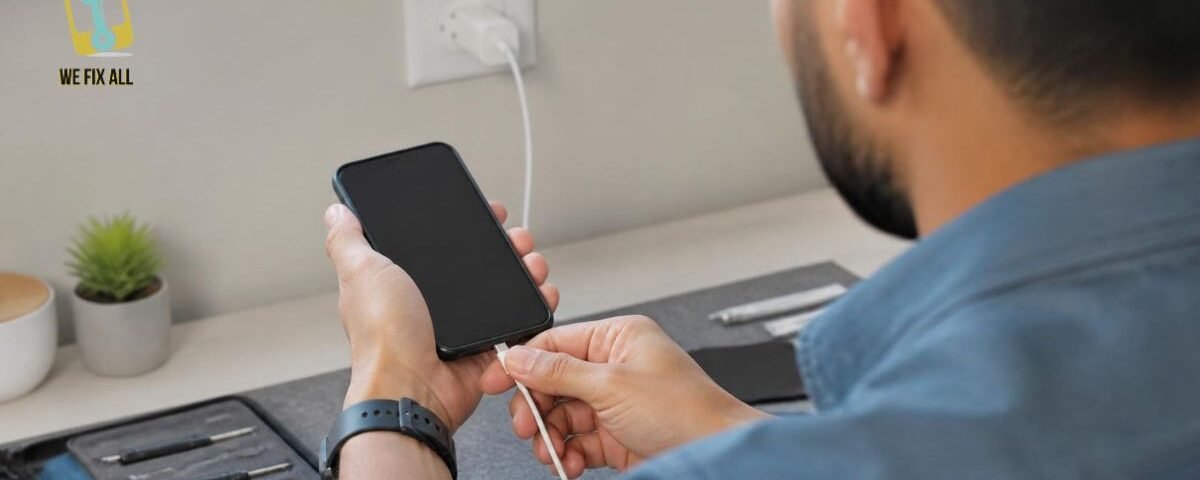
Your iPhone usually won’t charge because of a damaged cable or adapter, a dirty or blocked charging port, a software glitch, a battery that’s aged past its useful range, or a safety lockout like liquid detection. Start by swapping your cable, checking the port for debris, and restarting your phone that resolves the majority of cases without a trip to Apple.
If your iPhone is plugged in but not charging, test with a different MFi-certified cable and outlet first. If that doesn’t work, check for a blocked port, an on-screen warning (“Accessory Not Supported” or “Liquid Detected”), or a battery health issue under Settings > Battery. Jump to the diagnostic table to match your exact symptom to a fix.
Why Is My iPhone Not Charging?
iPhone charging failure happens when the connection between your power source and your battery is interrupted by hardware (cable, port, adapter), software (a glitch or update issue), or a built-in safety feature (liquid or temperature lockout). Identifying which category you’re in is the fastest route to a fix.
The main culprits, in order of how often they actually happen:
- Damaged or non-certified cable/adapter — the single most common cause
- Dirt, lint, or debris in the charging port
- Software glitch that stops the phone from recognizing power
- Battery health degradation on older iPhones
- Liquid in the port, triggering a protective lockout
- Physical port or logic board damage (less common, needs a technician)
<a name=”table”></a>Diagnostic Table — Match Your Symptom to the Fix
Self-diagnosing is faster than trial-and-error. Find your symptoms below.
| Symptom | Likely Cause | Try This First |
| No charging icon at all, screen unresponsive | Faulty cable/adapter, blocked port, or deeply drained battery | Swap cable, check port, let it sit plugged in for 30 minutes |
| Icon appears but percentage doesn’t move | Weak adapter wattage or software glitch | Use a 20W+ adapter, force restart |
| Charges only when phone is off or idle | Power draw exceeds adapter output during use | Try a higher-wattage adapter, avoid heavy apps while charging |
| “Accessory Not Supported” pop-up | Non-MFi cable, dirty port, or software issue | Clean port, try an Apple-certified cable, update iOS |
| “Liquid Detected” warning | Moisture in the port | Air-dry 30+ minutes minimum; don’t force-charge |
| Wireless pad won’t charge, cable works fine | Misalignment, thick case, or metal interference | Remove case, re-center on the coil |
| Stops exactly at 80% | Optimized Battery Charging (normal, not a fault) | Check Settings if you need a full charge now |
| Only one specific cable fails Is may say site map delete krdo | That cable is damaged or uncertified | Replace it — don’t diagnose the phone yet |
iPhone Says “Accessory Not Supported” What It Means
This alert means your iPhone can’t verify the cable or adapter meets Apple’s power-safety standards, so it blocks charging to protect the battery.
Common triggers:
- A non-MFi-certified cable (common with cheap or counterfeit accessories)
- A dirty or damaged Lightning/USB-C port that disrupts the connection handshake
- An outdated iOS version misreading a legitimate accessory
Fix it: Dismiss the alert, unplug, inspect and clean the port with a flashlight, then reconnect using an Apple-certified or MFi-labeled cable. If it persists across multiple certified accessories, the port itself may be damaged that points toward a service visit.
iPhone Says “Liquid Detected” What to Do
If your iPhone detects moisture in the charging port, it deliberately blocks charging; this is a safety feature, not a malfunction.
What to actually do:
- Unplug immediately and don’t attempt to force a charge.
- Tap your iPhone gently against your hand, port facing down, to help displace liquid.
- Leave it in a dry, room-temperature spot for at least 30 minutes to several hours before trying again. Patience matters more than speed here.
- Skip the rice trick and skip compressed air Apple specifically advises against blowing air into a wet port, since it can push moisture deeper.
- Try wireless charging (MagSafe or Qi) while the port dries out, so you’re not stuck without power.
If the alert reappears every time you plug in, even after drying, that suggests internal moisture reached components beyond the port time to get it looked at professionally.
Lightning vs. USB-C: Does Your iPhone Model Change the Fix?
Since the iPhone 15 lineup, Apple switched from Lightning to USB-C across the range, and that’s carried through iPhone 16 and 17. This matters for troubleshooting because:
- USB-C models can draw more power and are more sensitive to poor-quality third-party cables that don’t meet USB-C Power Delivery specs.
- Lightning models (iPhone 14 and earlier, plus SE) are more prone to port lint buildup, since the connector shape traps debris more easily.
- Cross-compatibility confusion is common: an old Lightning cable simply won’t fit a USB-C iPhone, and people sometimes assume it’s a charging fault rather than a connector mismatch.
Check your iPhone’s port shape before assuming a deeper problem. It sounds basic, but it’s a genuinely frequent support-thread mix-up.
Step-by-Step Fixes
- Swap the cable and adapter. Use a different MFi-certified cable and a different wall outlet or USB port. This isolates roughly half of all reported cases on its own.
- Inspect and clean the port. Power off your iPhone, shine a flashlight into the port, and gently clear debris with a wooden toothpick or soft dry brush. Avoid metal tools; they can short the contacts.
- Force restart your iPhone. iPhone 8 and later: press Volume Up, release; press Volume Down, release; hold the Side button until the Apple logo appears.
- Update iOS. Go to Settings > General > Software Update charging bugs are occasionally patched in point releases.
- Check Battery Health. Settings > Battery > Battery Health & Charging. If Maximum Capacity has dropped significantly, charging behavior (slow charging, sudden shutdowns) can suffer even with a perfect cable.
- Try a wireless charger as a test. If your iPhone charges wirelessly but not via cable, the fault is almost certainly the port or cable, not the battery.
Why Won’t My iPhone Charge Wirelessly?
Wireless charging fails for different reasons than cable charging, and it’s worth troubleshooting separately:
- Misalignment Qi and Qi2 pads require the coil to sit directly under the charging area; even a slight offset stops the transfer.
- Case interference thick cases, and especially cases with metal components or credit cards/wallets attached, block the magnetic and inductive connection.
- Certified vs. uncertified pads MagSafe and Qi2-certified chargers snap into precise alignment automatically; generic Qi pads don’t, and that’s the most common wireless complaint.
Original Insight: The 60-Second Isolation Test
Most guides tell you to “try a different cable” and “clean the port” as separate, disconnected steps. Here’s a tighter framework that isolates the actual fault in one pass:
The 60-Second Cable-Port-Battery Test:
- Plug in with a cable you know works on another device (5 seconds).
- If it charges → your original cable/adapter was the problem. Done.
- If it doesn’t → try wireless charging, if available (15 seconds).
- If wireless works but cable doesn’t → the port is the issue, not the battery.
- If neither works → check Battery Health immediately; a battery below recommended capacity thresholds is the likely root cause, not the accessories.
This sequence takes under a minute and tells you which of the three usual suspects cable, port, or battery, is actually responsible, instead of guessing your way through six separate troubleshooting steps.
When to Get Professional Help in Canada
If you’ve worked through the steps above and your iPhone still won’t charge, it’s a hardware issue that needs a technician rather than more troubleshooting at home.
Your options in Canada:
- Apple Store available in major cities (Toronto, Vancouver, Montreal, Calgary, and others); book a Genius Bar appointment through the Apple Support app for the most reliable diagnosis.
- Apple Authorized Service Provider (AASP) is a good option if you’re outside a city with an Apple Store; still uses genuine parts and Apple-trained technicians.
- Independent repair shops are often faster and cheaper for out-of-warranty devices, though parts and warranty coverage vary by shop ask before you commit.
Seek help if:
- Multiple certified cables and adapters all fail
- You see visible port damage or bent pins
- Battery Health has dropped substantially and the phone won’t hold a charge
- The “Liquid Detected” warning persists after thorough drying
Conclusion
Most iPhones that “won’t charge” aren’t actually broken; a damaged cable, a dusty port, or a stuck software glitch causes the majority of cases. Run through cable, port, restart, and Battery Health in that order before assuming you need a repair. If a certified cable, a clean port, and an up-to-date iOS still don’t fix it, that’s your signal it’s genuinely a hardware issue worth booking in with Apple or an Authorized Service Provider.
FAQs
What do I do if my iPhone is plugged in but not charging?
Check that your cable and adapter are undamaged and properly connected, then try a different MFi-certified cable and outlet. Clean the charging port of debris, restart your iPhone, and make sure iOS is up to date. If it still won’t charge, check Battery Health before assuming a hardware fault.
How do I clean my iPhone charging port safely?
Power off your iPhone first. Use a flashlight to check for lint or dust, then gently remove it with a wooden toothpick or soft, dry brush never metal. Apple advises against compressed air since it can push debris or moisture deeper into the port.
Why does my iPhone say “accessory not supported”?
This alert appears when your iPhone can’t verify a cable or adapter meets its safety standards — usually due to a non-certified accessory, a dirty port, or occasionally outdated software. Try a certified cable and clean the port before assuming it’s a hardware fault.
Can water damage stop my iPhone from charging?
Yes. If your iPhone detects moisture, it blocks charging on purpose to prevent internal damage, showing a “Liquid Detected” alert. Let the phone air-dry for at least 30 minutes before trying again, and avoid compressed air or heat.
Why does my iPhone stop charging at 80%?
This is almost always Optimized Battery Charging, a built-in feature that slows the final charge to reduce long-term battery wear. It’s normal behavior, not a defect you can review or adjust it under Settings > Battery > Battery Health & Charging.
How do I know if it’s my charger or my iPhone battery?
Test with a cable you know works on another device. If it charges, your original accessory was faulty. If it still doesn’t charge, try wireless charging if that works, the issue is your port or cable, not the battery.

1 Comment
[…] if the port itself isn’t damaged. A new cable fixes ~40% of “won’t charge” problems. If the port is bent, loose, or corroded, a cable won’t help. Try a new cable first (costs […]